🚚Shipment tracking
How Shippified finds tracking numbers, recognises carriers, checks packages live, and marks orders delivered.
- Written for
- Anyone who wants to follow their packages in Shippified
- Applies to
- All plans
- Deprecated
- + Deprecated
Once an order has a tracking number, Shippified works out the carrier and shows the package's history in the order drawer. For carriers it can track live (asking the carrier directly), it also checks the package in the background. When the carrier confirms delivery, the order moves to Delivered and the delivery date is recorded, even if you never open the dashboard. For other carriers, the retailer's shipping and delivery emails move the order along instead.
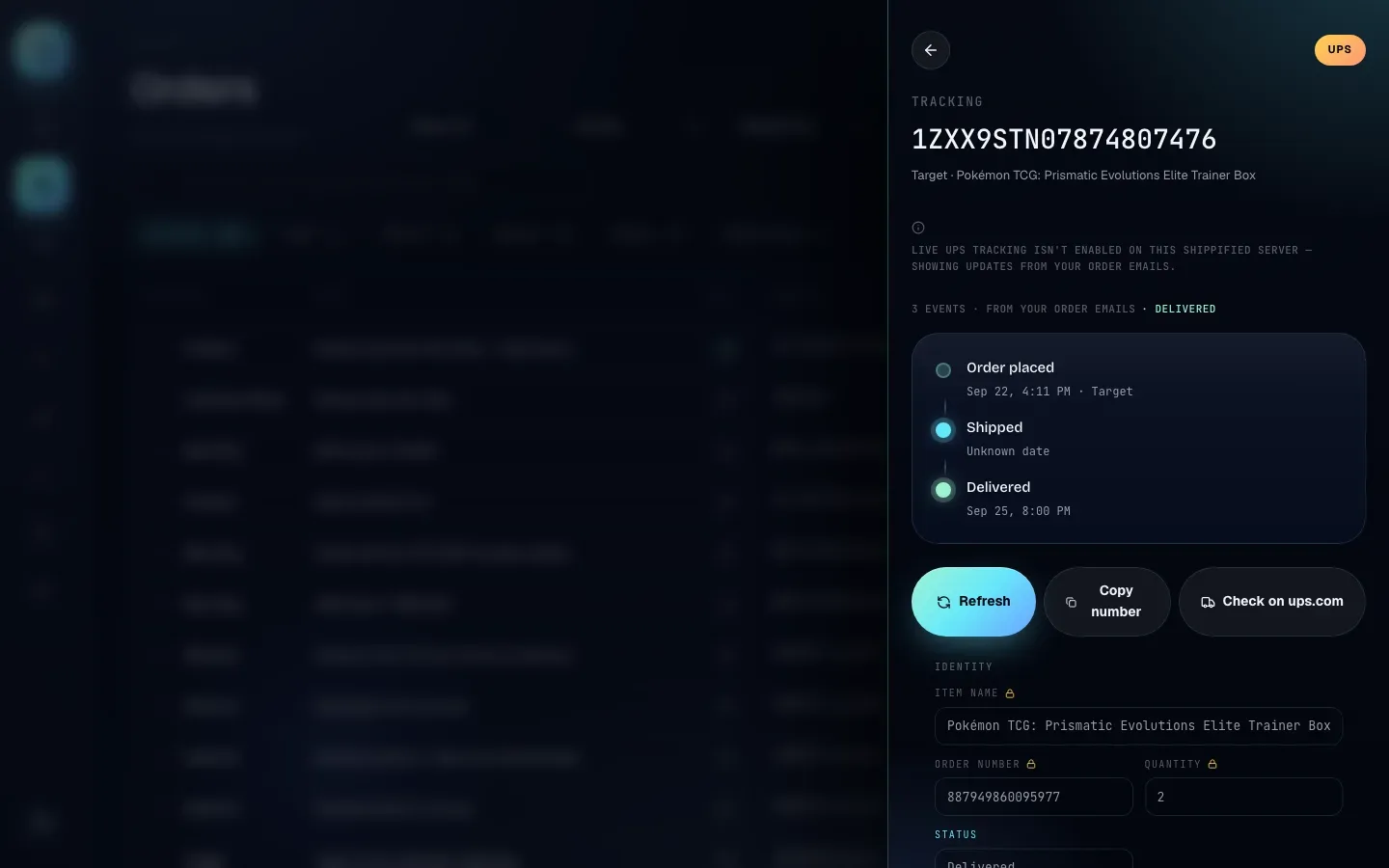
This guide covers how a tracking number gets onto an order, how the carrier is recognised, which carriers have live tracking, when tracking refreshes, what the drawer shows, and what to do when tracking doesn't update.
How a tracking number gets onto an order
There are three ways:
From the message. A built-in or custom template reads the tracking number from a shipping email or a monitor bot's post. If no template captures it, Shippified also looks for the word "tracking" (for example "Tracking number:" or "Tracking #") followed by a UPS
1Z…number, a long number starting with9, or an AmazonTBA…number. Any UPS1Z…number anywhere in the message is picked up too.From a later message. A shipping email with the same order number merges into your existing order and adds its tracking number. See Order lifecycle.
By hand. You type it in, on a new order or an existing one. See Add a tracking number by hand.
An order with a tracking number is at least Shipped.
How the carrier is detected
If the order names a carrier (in the message, or in the Carrier field), Shippified uses that name. It understands UPS, United Parcel Service, FedEx, Fed Ex, FDX, Federal Express, USPS, United States Postal Service, US Postal Service, DHL, DHL eCommerce, DHL Parcel and DHL Express, upper or lower case, with or without dots. It also finds them inside a longer name such as "USPS Ground Advantage" or "DHL Express Worldwide". The more specific name wins: "DHL Express" is never read as plain DHL, and "USPS" is never read as UPS.
If no carrier is named, or the name isn't one of these, Shippified guesses from the tracking number's format. Spaces are ignored, and the first matching rule wins:
Tracking number format | Detected as |
|---|---|
| UPS |
| USPS |
Starting with | DHL |
Exactly 10 or 11 digits | DHL Express |
Exactly 12 or 15 digits | FedEx |
If nothing matches, the drawer shows Unknown carrier and no live lookup is made. Amazon Logistics (TBA…) numbers are an example: they're kept on the order and searchable, but no carrier is detected.
Which carriers have live tracking
Live tracking means Shippified asks the carrier for the package's scans directly. You don't need your own carrier account or API keys: Shippified makes the lookups from its own servers, and the carrier only sees the tracking number.
Carrier | Live tracking | Without live tracking |
|---|---|---|
On shippified.net today, DHL and DHL Express are tracked live. UPS and FedEx aren't, and USPS never is. |
Carrier | Live tracking on shippified.net | What you get |
|---|---|---|
DHL | Yes | Live scans, background refreshes and automatic delivery. |
DHL Express | Yes (shares its connection with DHL) | Live scans, background refreshes and automatic delivery. |
UPS | No, not switched on | Timeline built from your order emails; Check on ups.com for live scans. |
FedEx | No, not switched on | Timeline built from your order emails; Check on fedex.com for live scans. |
USPS | Never. USPS only offers tracking through a paid service. | Timeline built from your order emails; Check on usps.com for live scans. |
Unknown carrier | No | Timeline built from your order emails; Copy number to check elsewhere. |
Shippified has built-in support for UPS and FedEx live tracking too, but each carrier only works when its connection is switched on for the Shippified server, and at the moment only DHL's is. That's a server setting, not something you can change in your account. For UPS and FedEx packages, the retailer's shipping and delivery emails move the order along instead, so make sure those emails reach Shippified (see Connect an email inbox).
The New order form and the order drawer always reflect the server's current setup: the form's hint says "Live tracking on — Shippified checks DHL in the background…" for a live carrier, and the drawer shows a notice for one that isn't (see below).
When live tracking isn't available
For UPS and FedEx packages on shippified.net, the drawer shows this notice above the timeline:
Live UPS tracking isn't enabled on this Shippified server — showing updates from your order emails.
It means:
Shippified isn't connected to that carrier on this server, so it can't ask for the package's scans. (FedEx packages show the same message with "FedEx".)
The timeline you see is built from the order's own messages: when it was placed, whether it shipped, and when it was delivered.
The order still moves: the retailer's shipping email makes it Shipped, and the delivery email makes it Delivered. Make sure the retailer's emails reach Shippified (see Connect an email inbox).
Check on ups.com (or the carrier's site) shows you the carrier's live scans.
Other notices you may see:
Notice | Meaning |
|---|---|
| USPS packages can't be tracked live. Use Check on usps.com. |
| The number didn't match any known format. If you know the carrier and the order's Carrier field is empty, type it in and save. |
Any other message | The carrier's own answer, for example that it doesn't recognise the number yet. Shippified shows the last timeline it received, or the email-based timeline, underneath. |
When tracking refreshes
For packages on a live-tracking carrier, Shippified checks in four ways. Each one updates the order itself: its status, estimated delivery date and delivery date.
Trigger | What happens |
|---|---|
Opening the drawer | Shows the last lookup if it's recent: under 5 minutes old for a package in transit, or under 24 hours old once it's delivered. Otherwise Shippified asks the carrier again. |
Refresh in the drawer | Always asks the carrier again. |
Sync tracking on the Orders page | Asks the carrier again for up to 50 of your Ordered or Shipped orders that have a tracking number on a live-tracking carrier, then shows a summary such as |
Background refresh | Runs every 5 minutes for every workspace, whether or not you're signed in. See below. |
Orders that are Delivered, Canceled or Issue aren't refreshed by Sync tracking or in the background. Packages on carriers without live tracking aren't refreshed either, because there's nothing to ask.
How background refresh works
Every 5 minutes, Shippified picks a batch of packages to check across all workspaces:
How often depends on the order's age. Orders from the last 30 days are checked about every 30 minutes. Orders 30 to 90 days old are checked about twice a day. Orders older than 90 days that still aren't delivered are no longer checked in the background, but Refresh and Sync tracking still work for them.
New packages go first. A package that's never been looked up is checked before anything else, then the most overdue ones.
Every workspace gets a turn, so a workspace with thousands of shipments can't hold up everyone else's.
Shared numbers are looked up once. If several orders share a tracking number, one lookup updates all of them.
Carrier limits are respected. Each carrier allows a limited number of lookups per day. Your own Refresh and Sync tracking clicks count toward the same daily allowance, and DHL and DHL Express share one. If the allowance runs out, or a carrier asks Shippified to slow down, background checks for that carrier pause for a while.
On a busy day, packages may be checked less often than every 30 minutes. If you need the latest status right away, click Refresh in the drawer.
The tracking drawer
Click an order with a tracking number to open its drawer. From top to bottom:
Carrier label in the top right: UPS, FedEx, DHL, DHL Express, USPS or Unknown carrier.
Tracking number as the heading, with the retailer and item name underneath.
A notice, when there's no live data, explaining why (see above).
A summary line: the number of events;
from your order emailsfor an email-based timeline, orlast update 3m agofor live data;refreshingwhile a refresh runs;deliveredonce delivery is confirmed; andtoname when the carrier gives the recipient's name.The timeline. Each event has a description, a date and time, and a location when there is one. Unknown date means no date was recorded for that step.
Actions: Refresh, Copy number, and Check on carrier site for UPS, FedEx, DHL, DHL Express and USPS.
The order editor underneath. See Order details.
The drawer always shows the best timeline it has, in this order:
The carrier's live timeline.
The last timeline Shippified got from the carrier, if the newest lookup failed.
A timeline built from your messages: Order placed, Shipped, and Delivered or Estimated delivery when those are known.
Other states you may see:
State | Meaning | What to do |
|---|---|---|
A grey loading placeholder | The drawer is fetching tracking. | Wait a moment. |
No tracking events yet | There's no timeline from any source yet. | Try Refresh later. |
Tracking lookup failed, with a Try again button | Shippified couldn't get tracking at all, for example because you lost connection. The message underneath gives the reason. | Click Try again. |
When a lookup changes the order (for example, marking it Delivered), the order list behind the drawer updates to match.
Estimated and actual delivery dates
Each live lookup can update the order:
Estimated delivery. If the carrier gives an estimated delivery date, it's saved on the order. It appears as the last event in an email-based timeline, and on the Calendar.
Shipped. An Ordered order moves to Shipped once the carrier has scanned the package.
Delivered. When the carrier confirms delivery, an Ordered or Shipped order moves to Delivered. The delivery date is taken from the carrier's delivery scan; if the scan has no date, the day Shippified learned of the delivery is used. The Calendar then shows the delivery instead of the estimate.
Extra details. The shipping address, package weight and dimensions, who signed for it, and the service level (for example "Ground") are saved when the carrier returns them. They're available through the API.
Delivery dates only come from carriers. An order marked Delivered by a delivery email has no delivery date unless a carrier also confirms it.
The carrier is treated as the source of truth, and you can't change the status from the dashboard. Canceled and Issue orders are never moved by a carrier lookup. Carrier-confirmed delivery also survives re-parsing: after Re-run parsing, an order the carrier marked delivered stays Delivered.
Add a tracking number by hand
- On a new order
- On an existing order
- Open the form
On the Orders page, click New order.
- Fill in the order
Enter the Item name and anything else you know. Include the Order number if you have it.
- Enter the tracking number
Paste it into Tracking number. Leave Carrier on Auto-detect from tracking number, or choose UPS, FedEx, DHL, DHL Express or USPS.
- Check the hint and save
The hint tells you whether the carrier is tracked live. If it isn't, choose an inbox under Link an inbox so shipping and delivery emails can update the order. Click Add order. The order starts as Shipped.
- Open the order
Click it on the Orders page. If it has no tracking number, the carrier label reads No tracking yet and the drawer shows only the order editor.
- Enter the tracking number
Under Shipping, paste it into Tracking number. Optionally type the carrier's name in Carrier, for example
FedEx. - Save
Click Save changes. If the order was Ordered, it moves to Shipped, and the drawer switches to the tracking timeline.
The editor only fills in blanks. A tracking number or carrier the order already has, from a message or an earlier edit, is locked and can't be changed from the dashboard. Values you type are kept when orders are re-parsed.
Troubleshooting
My order isn't moving to Delivered
Work through these in order:
Open the order and read the notice at the top of the timeline. If it says live tracking isn't enabled or available for the carrier (on shippified.net: UPS, FedEx and USPS), the order waits for the retailer's delivery email. Check that the email reached Shippified in Inbox (see The Inbox).
If the carrier is live (DHL or DHL Express), click Refresh. If the carrier's own site says delivered but Shippified doesn't, the carrier's system may lag behind; try again later.
Check the status isn't Canceled or Issue. Carriers never move those. An order marked Canceled by a partial-cancel email moves on when its shipping email arrives. See Order lifecycle.
Orders more than 90 days old aren't checked in the background. Click Refresh to check them by hand.
The drawer shows "Unknown carrier"
The tracking number doesn't match any known format, and the order doesn't name a carrier. If the Carrier field is empty, type the carrier's name and click Save changes. If it's already filled with something Shippified doesn't recognise, use Copy number and check on the carrier's website.
The carrier label is wrong
Detection by number format can guess wrong for plain numeric numbers: 10- or 11-digit numbers are read as DHL Express, and 12- or 15-digit numbers as FedEx. If the order's Carrier field is empty, type the right carrier and save: a named carrier always wins over the format guess.
Sync tracking says "Nothing to sync"
The full message is Nothing to sync — no open orders with a tracking number on a live-tracked carrier. None of your Ordered or Shipped orders have a tracking number on a carrier Shippified can track live. On shippified.net that means none of them are DHL or DHL Express packages. UPS, FedEx and USPS orders update from their emails instead.
The timeline says "Unknown date" for Shipped
The email-based timeline knows the order shipped but not exactly when. Use Check on carrier site to see the carrier's scan times.
The carrier says it doesn't recognise the tracking number
Carriers often don't know a number until the package is first scanned, which can take a day after the label is created. Shippified keeps checking in the background; there's nothing you need to do.