🧩Build custom templates
Teach Shippified to read a Discord bot or retailer email it doesn't recognise, by marking up a real sample.
- Written for
- Anyone whose bot or retailer messages arrive as "Unparsed order" or with missing details
- Applies to
- All plans
- Deprecated
- + Deprecated
A template is a small recipe that tells Shippified how to read one kind of message. Shippified ships with built-in templates for common Discord monitor bots and for Target, Walmart, Amazon and Best Buy emails. When a message comes from something those don't cover (a new checkout bot, a smaller retailer, a changed email layout), you build your own template from a real sample and Shippified reads it from then on.
You don't need to be a programmer. Most templates only need a few field names copied from the message. For email you'll usually write two or three short patterns, and this page includes cheat sheets for those.
How templates work
Every template has two parts:
Detection rules answer "is this message one of mine?" Each rule looks at one spot in the message and checks it, for example "the embed footer contains
Stellar" or "the email's From line contains@mail.northwind.example". All the rules must pass for the template to be used.Field mappings (the Extraction map) answer "where is each order detail?" Each mapping points at one spot in the message and says what it is: the order number, the item name, the total, and so on.
Both use the same three ways of pointing at a spot in a message. These are called selectors:
Selector type (label in the app) | Points at | Example |
|---|---|---|
Embed field name | A named field in a Discord embed, or a |
|
JSON path | An exact location in the webhook's JSON data |
|
Regex capture | Whatever a text pattern (a regular expression) matches |
|
Which template wins
When a message arrives, Shippified tries templates in this order and uses the first one whose rules all pass:
Webhooks only: the template pinned to the bot that received it (its Parser template in Links → Webhooks). A pinned template is always used, whether or not its rules pass.
Your custom templates of the same kind (webhook or email), newest first. Your templates on the library page lists them in this order.
Built-in templates.
After the chosen template has done its work, a generic pass fills in anything still missing, such as the quantity, a tracking number or the carrier. You only need to map what the generic pass can't find by itself.
For email, an inbox can be limited to chosen templates with Templates this source parses against in its settings (see Connect an email inbox). The inbox then tries only those templates, in the order you set.
A template with no detection rules is never chosen automatically. It only runs when a Discord bot pins it. An email template with no rules therefore never runs at all, even if an inbox lists it. Always give an email template at least one rule, such as a sender filter.
Before you start
Get a real sample of the message you want to read:
Discord bot: the JSON the bot posts. You can capture an embed straight from Discord with the embed copier, then load it with Load from Discord. You can also copy the payload from the bot's activity log in Links → Webhooks (see Connect Discord monitor bots).
Email: the full raw email. In Gmail, open the email, click the three-dot menu and choose Show original. In other mail apps, look for "View source" or "Show original". At the very least you need the
From:andSubject:lines, then an empty line, then the body.
One sample per template. If a retailer's "order placed" and "order shipped" emails look different, build one template for each.
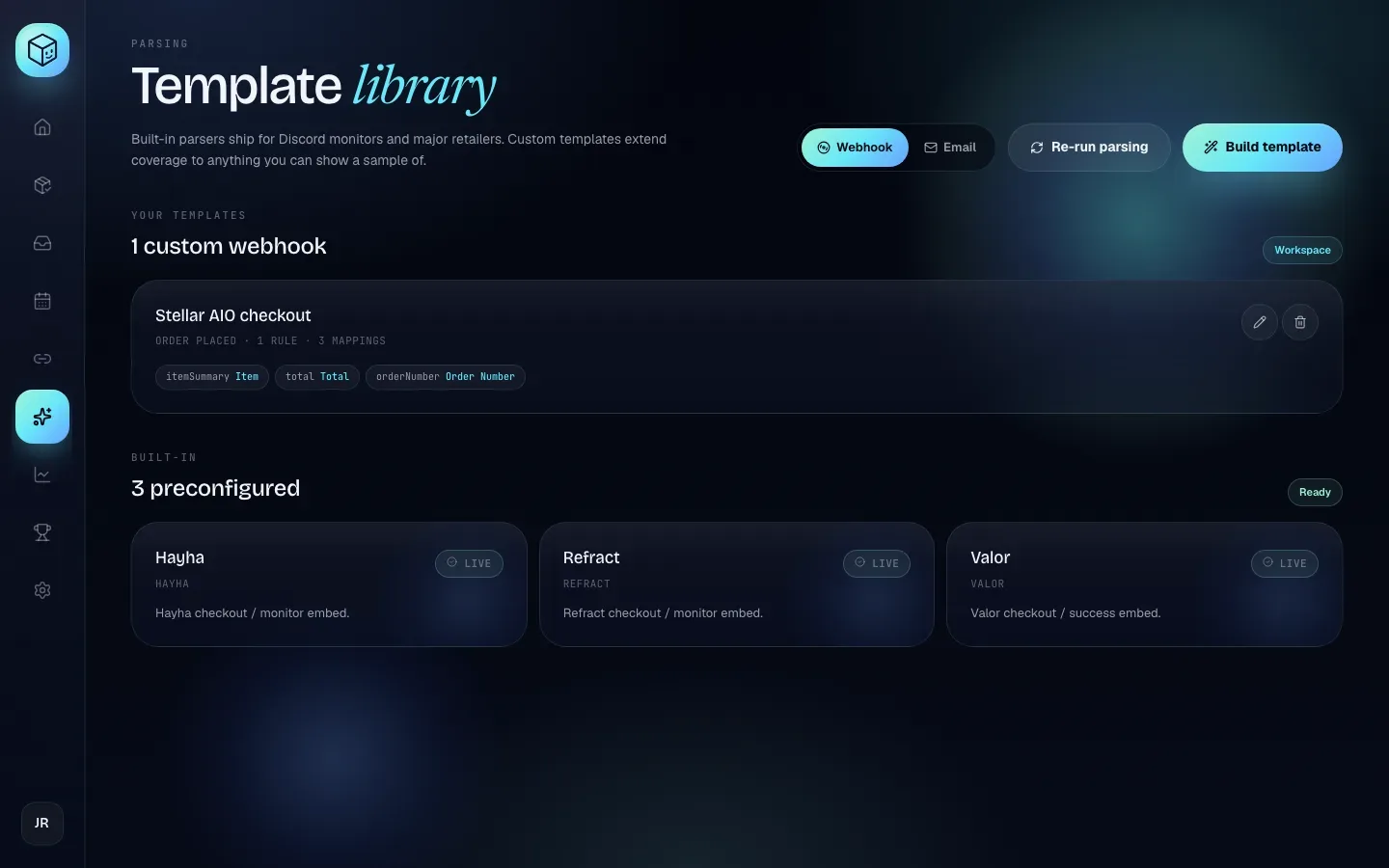
The Template library
Click Templates in the sidebar.
Control | What it does |
|---|---|
Webhook / Email | Switches the page between templates for Discord webhooks and templates for emails. Build template creates the kind that's selected. |
Re-run parsing | Rebuilds your existing orders from their original messages using your current templates. See Apply changes to existing orders. |
Build template | Opens the builder for a new template. |
Below the buttons are two sections:
Your templates (tagged Workspace): your custom templates of the selected kind, with a count such as 1 custom webhook. Each card shows the template name, its event type, how many rules and mappings it has, and up to six of its mappings (target and selector). If there are more, the card shows +N more. Click the pencil (Edit template) to open it in the builder, or the bin (Delete template) to delete it. With no custom templates yet, you'll see No custom templates yet and a Build your first button.
Built-in (tagged Ready): the templates Shippified maintains, with a count such as 3 preconfigured, each marked Live. You can't edit these. To change how one of these messages is read, build a custom template for it: custom templates are tried before built-ins.
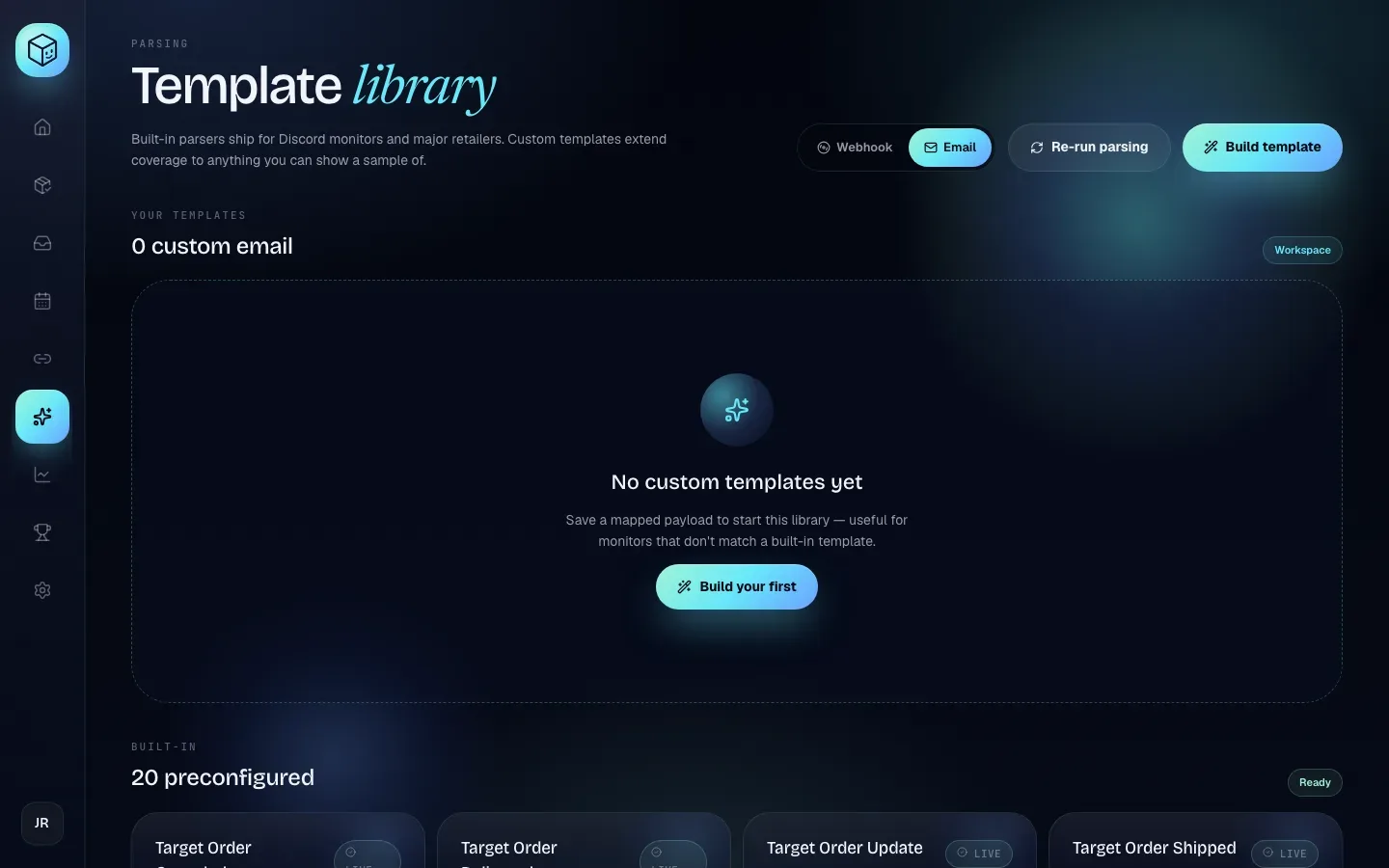
Delete template asks you to confirm (Delete "name"?, with a Delete template button) and then can't be undone. New messages are no longer read with it. Any bot that had it pinned shows · missing on its Template row in Links → Webhooks and goes back to automatic detection. Orders already read with the template keep their values until you re-run parsing. If the delete fails, a red message above your templates says why.
Tour of the builder
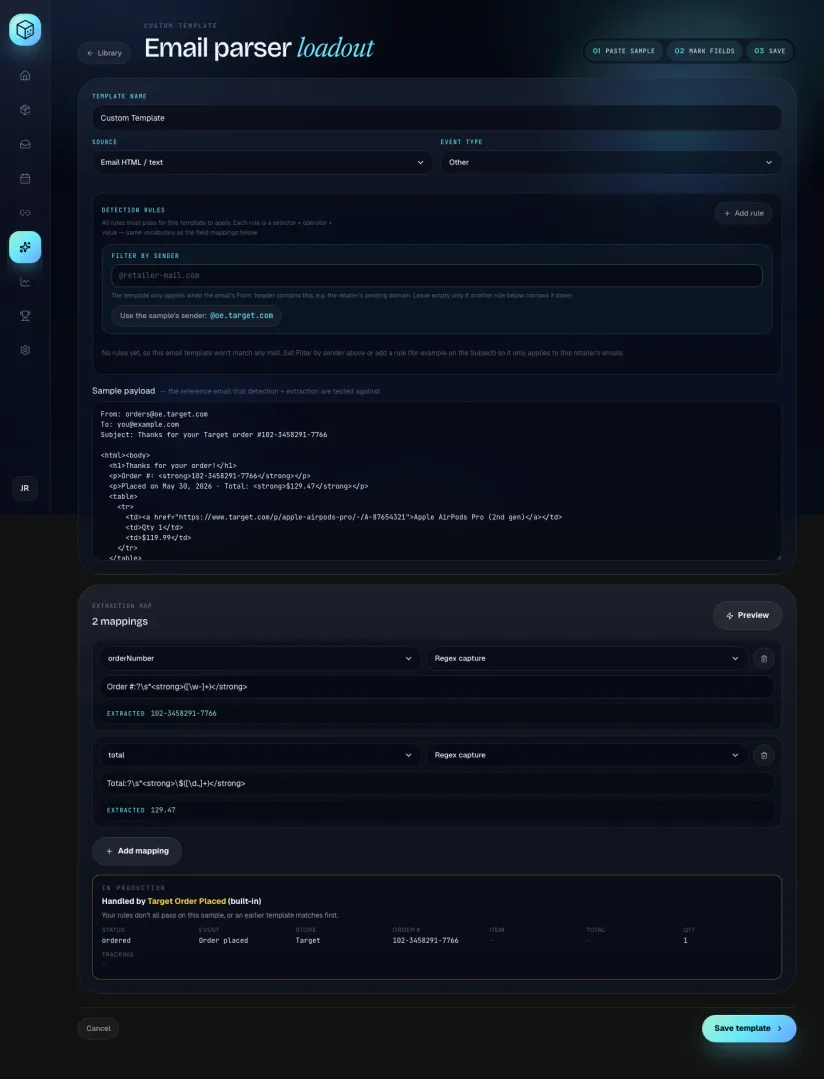
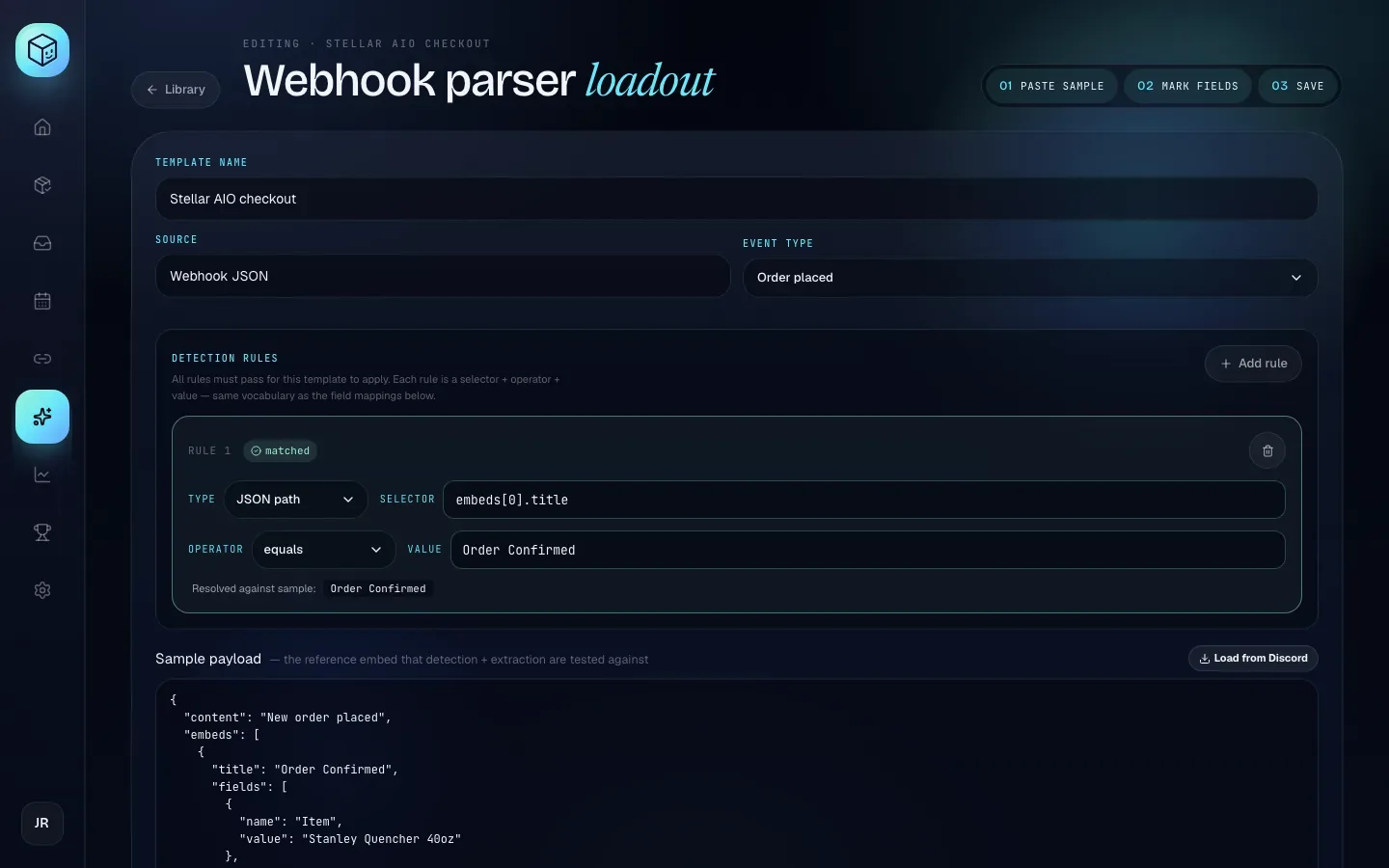
Click Build template. The builder title reads Webhook parser loadout or Email parser loadout, and three step markers at the top right light up as you go: 01 Paste sample, 02 Mark fields, 03 Save. Library (top left) goes back without saving.
The left column holds the template's settings, its detection rules and the sample. The Extraction map column holds the field mappings and the In production panel.

The builder opens with a starter sample and two starter mappings so you can see how everything fits together, and, for a webhook template, one starter rule. A new email template starts with no rules, so it won't match any mail until you add a sender filter or a rule (see Filter by sender). Replace the starters with your own.
Template name
What the template is called in the library, in a bot's Parser template list and on each order it reads. Up to 120 characters. If you leave it empty, it's saved as "Custom Template". Use something you'll recognise, such as "Stellar AIO checkout" or "Northwind: shipped".
Source
Webhook JSON: for Discord bot messages.
Email HTML / text: for emails.
The builder starts with the kind selected on the library page.
Choose Source first. Switching it replaces your mappings with the starter mappings for the other kind. If you edited the sample, Shippified asks Replace the sample payload? (Replace swaps in the other kind's starter sample, Cancel keeps yours). Once a template is saved, its source is fixed and shown greyed out. To read the other kind of message, build a new template.
Event type
What kind of event every message this template reads represents. This decides the order's status.
Option | Use it when | Order status it leads to |
|---|---|---|
Order placed | The message confirms a purchase or checkout | Ordered (Shipped if the message also has a tracking number) |
Order shipped | The message says the order has shipped | Shipped |
Order update | Delays, "out for delivery", ready for pickup | Ordered, or Shipped if a tracking number is known |
Order delivered | The message confirms delivery | Delivered |
Order canceled | The message confirms a cancellation | Canceled |
Other | One template covers several kinds of message | Worked out from the wording |
With Other, Shippified reads the message's wording to decide. For email it looks at the subject first, then the start of the body. It recognises phrases like "canceled", "was delivered", "out for delivery", "shipped", "on its way", "successful checkout" and "thanks for your order". If nothing matches, the event is unknown and the order stays Ordered. You can also map the eventType field (see the Target fields table).
There is no store picker. Shippified works out the retailer from the sender's address (email), from words in the message such as "Target" or "walmart.com", or from a store mapping. It recognises Target, Walmart, Amazon and Best Buy. Anything else is filed as Unknown Store. An order with an unknown store and no item name gets the Issue status for review, so always map the item name for other retailers.
Sample payload
The big text box is the reference message that your rules and mappings are tested against. Everything in the builder updates live as you type in it.
Webhook: paste the JSON your bot posts. It normally looks like
{ "embeds": [ { ... } ] }. If what you paste isn't valid JSON, it's treated as plain text, so JSON path selectors won't find anything.Email: paste the raw email including its headers. Shippified reads it exactly as it reads real mail.
Load from Discord (webhook templates only) opens a Submitted samples list of embeds you've captured with the embed copier, each with its name, the server it came from and when it was captured. Click one to drop it into the sample. If you haven't captured any yet, the list explains how: add the embed-copier bot in Discord, paste your submission URL with /setshippified, then run /copy <message_link> on an embed.
The sample is saved with the template, so you can come back later and test changes against it.
Detection rules
Click Add rule to add a rule. Each rule is numbered (Rule 1, Rule 2, …) and has these parts:
Part | What to enter |
|---|---|
Type | The selector type: Embed field name, JSON path or Regex capture. New rules start as JSON path in a webhook template and Regex capture in an email template. |
Selector | Where to look (see the cheat sheets). |
Operator | How to check what was found: equals, contains, regex or exists. |
Value | What to compare against. Greyed out as "(not used by 'exists')" for exists. |
Scope | Email templates only: auto, header or body. |
Remove a rule with its bin icon. A rule with an empty selector is dropped when you save.
Regular expressions are checked as you type. A pattern that isn't valid gets a red border and a "Not a valid regex" error under it, and the template can't be saved until it's fixed (see Troubleshooting).
As you edit, each rule shows a badge: matched when it passes against the sample, no match when it doesn't. Under it, Resolved against sample: shows the exact text the selector found (the first 120 characters). If that's not what you expected, fix the selector before you worry about the operator.
Operators
Operator | The rule passes when… | Example |
|---|---|---|
equals | The found text is exactly Value |
|
contains | The found text includes Value anywhere | footer contains |
regex | The pattern in Value matches the found text | title regex |
exists | The selector found any text at all | the field |
If the selector finds nothing, the rule fails.
Case sensitivity
Rules made in the builder ignore upper and lower case: stellar, Stellar and STELLAR all match each other. This applies to equals, contains, regex and to regex selectors. Mapping selectors ignore case too, and so do Embed field name lookups. (Rules created through the Templates API can be made case-sensitive. The builder keeps that setting when you edit the rule.)
Scope (email only)
An email has two parts Shippified can look at:
Scope | Looks at |
|---|---|
header | The |
body | The email's content: first its HTML, then a plain-text version of it |
auto | header if the selector starts with a header name ( |
Filter by sender (email only)
Above the rule list, email templates have a Filter by sender box: "The template only applies when the email's From: header contains this, e.g. the retailer's sending domain. Leave empty only if another rule below narrows it down." Type part of the sender's address, such as @mail.northwind.example, and Shippified adds a hidden rule that checks the From line for it. Clear the box to remove it. It isn't shown in the rule list and doesn't take a rule number.
While the box is empty and your sample has a From: line, a button under it offers that sender's domain, for example Use the sample's sender: @oe.target.com. Click it to fill the box.
An email template with no sender filter and no rules shows an amber warning: "No rules yet, so this email template won't match any mail." It goes away once you set Filter by sender or add a rule.
Field mappings (the Extraction map)
The Extraction map heading counts your mappings (for example 2 mappings). Each mapping has:
A target field: which order detail this is (see the table below).
For the
customtarget only, a custom key box: the name to store the value under.A selector type: Embed field name, JSON path or Regex capture.
The selector itself (placeholder: "Field name or regex").
An Extracted line showing what the mapping finds in the sample. "No preview" means it found nothing.
Click Add mapping to add one, and the bin icon (Remove mapping) to remove one. Every change refreshes the extracted values, and Preview refreshes them all at once.
Target fields
Target | What to point it at | Notes |
|---|---|---|
| The retailer's order number | Messages with the same order number are merged into one order, so an order email and a shipping email become one order. |
| The product name | Shown as the order's title. Without it, the order is called "Unparsed order". |
| The customer, profile or account name | Useful for checkout bots that show a profile name. |
| The order total | Also used as the order's cost when there's no |
| The item price | If set, this is the order's cost; otherwise |
| Number of units | Only the digits are kept, so |
| The tracking number | If you don't map it, the generic pass looks for common tracking number formats (such as UPS |
| The carrier name | If you don't map it, the carrier is worked out from the tracking number. |
| The product's SKU or item code | Shown on the order card as "SKU …". |
| Size or variant | Shown on the order card as "Size …". |
| A link to the product page | Shown on the order card as Open link →. |
| A product image link | If you don't map it, the embed's thumbnail or image (webhooks) or the first product-sized image (email) is used. |
| When the event happened | For email, the email's date is used if you don't map it. |
| The retailer | Only used if the value names a recognised retailer (Target, Walmart, Amazon, Best Buy). |
| What kind of event this is | Only used when Event type is Other. The value can be |
| Anything else you want to keep | Enter a custom key (for example |
How mappings behave
Fallbacks: if you add several mappings for the same target, the first one that finds a value wins. Put the most specific first.
Values are cleaned: HTML tags are removed,
,&and similar codes become normal characters, Discord formatting (||spoiler||,**bold**,__underline__and backticks) is stripped, and extra spaces are squashed.<strong>$49.99</strong>becomes$49.99.Regex mappings search the email's HTML first, then its plain-text version, then the header lines. For webhooks they search the embed's text (see below).
Embed field name mappings look for the embed field with that name. If there's no such field, they look for a
Name: valueline (alsoName# valueorName- value) in the text. The value runs to the end of the line or the first comma or|.
Because a Name: value line stops at the first comma, Total: $1,299.99 in an email gives $1. Use a Regex capture for money in email, for example Total:\s*(\$[\d,.]+). Real Discord embed fields aren't affected: the whole field value is used.
What a webhook's "text" is
For Embed field name fallbacks and Regex capture on webhooks, Shippified joins the message into lines of text in this order: the bot's username, the message content, then for each embed its author name, title, description, footer text, and each field as Name: value.
The In production panel
Under the mappings, the In production panel runs the real parser on your sample, exactly as live messages are read, with your unsaved draft tried first. It never creates or changes an order, so you can experiment freely.
The headline tells you what would happen:
Headline | Meaning |
|---|---|
This template handles it | Your draft's rules all pass. This template would read the message. |
Handled by name (with (built-in) for a built-in) | Your rules don't all pass on this sample, so another template would read it. |
No template matches — generic parsing | Nothing matches. Only the generic pass would run. |
Ignored — not recognised as order mail | Email only. No template matches and the email doesn't look like order mail from a known retailer, so it wouldn't become an order at all. |
Underneath is the order it would create: Status, Event, Store, Order #, Item, Total, Qty and Tracking. A dash means that detail is missing. Store shows the retailer's name (for example Target). This includes values found by the generic pass, so it's the best check of the finished result.
The panel doesn't know about bot pins or an inbox's template list. In real life, a bot's pinned template always wins for that bot. Also, when you edit an older template, the panel tries it first, but real messages try your custom templates newest first. If a newer template also matches the sample, the newer one wins in production.

If the panel disappears while you type, one of your patterns isn't a valid regular expression yet. It comes back once the pattern is valid.
Save the template
Click Save template (Save changes when editing). Rules and mappings with an empty selector are dropped. While any regular expression is invalid, the button can't be clicked and "Fix the regex errors marked above before saving." appears above it (see Troubleshooting). After saving you go back to the library, and the template applies to new messages straight away.
For a webhook template, one more step is usually worth it: go to Links → Webhooks, edit the bot and choose your template (listed as "name · custom") under Parser template. The bot then always uses it. See Connect Discord monitor bots.
Worked example: a Discord bot Shippified doesn't recognise
The problem: you've connected a checkout bot called Lumen. Its orders arrive, but as "Unparsed order" or with the wrong details. This is what its webhook sends:
{
  "username": "Lumen",
  "embeds": [{
    "title": "Successful Checkout",
    "author": { "name": "Lumen Monitors" },
    "thumbnail": { "url": "https://cdn.example.com/p/earbuds.png" },
    "fields": [
      { "name": "Site", "value": "Target" },
      { "name": "Product", "value": "**Wireless Earbuds Pro**" },
      { "name": "Price", "value": "$129.99" },
      { "name": "Qty", "value": "1" },
      { "name": "Order", "value": "||912000111222||" },
      { "name": "Profile", "value": "Main 01" }
    ],
    "footer": { "text": "Lumen Monitors v3.2" }
  }]
}- Open the builder
Go to Templates, make sure Webhook is selected, and click Build template. Source is already Webhook JSON.
- Name it and choose the event
Set Template name to
Lumen checkout. This bot only posts checkouts, so set Event type to Order placed. - Add the sample
Select everything in Sample payload and paste the JSON above, or click Load from Discord and pick the embed you captured.
- Write the detection rules
Change the starter Rule 1 to check the footer for the bot's name, then click Add rule for a second check on the title:
1 — JSON path —
embeds[0].footer.text— contains —Lumen2 — JSON path —
embeds[0].title— regex —success(ful)? checkout
Both should show matched, with Resolved against sample:
Lumen Monitors v3.2andSuccessful Checkout. - Map the fields
Edit the two starter mappings and add the rest:
orderNumber— Embed field name —OrderitemSummary— Embed field name —Producttotal— Embed field name —Pricestore— Embed field name —SitecustomerName— Embed field name —Profilecustom(keybot) — JSON path —username
Check each Extracted value. The spoiler bars around the order number and the bold markers around the product name are gone:
912000111222andWireless Earbuds Pro. You don't needquantityorimageUrl: the generic pass reads the Qty field and the thumbnail. - Check In production
The panel should read This template handles it, with Status
ordered, EventOrder placed, StoreTarget, the order number, item and$129.99. - Save and pin
Click Save template. Then pin it: Links → Webhooks, edit the Lumen bot, set Parser template to "Lumen checkout · custom". Finally, click Re-run parsing on the Templates page to fix the orders Lumen already sent.
Prefer Embed field name for values in fields. It keeps working if the bot reorders its fields, while a path like embeds[0].fields[1].value breaks. Use JSON path for things that aren't fields: the title, footer, author, thumbnail or username.
Worked example: an email from a retailer Shippified doesn't support
The problem: you buy from Northwind Outfitters. Their emails either don't show up as orders or show up as "Unparsed order". Here's the raw order confirmation (from Show original):
From: Northwind Outfitters <orders@mail.northwind.example>
To: you@example.com
Subject: Your Northwind order NW-448812 is confirmed

<html><body>
<h1>Thanks for your order!</h1>
<p>Order number: <strong>NW-448812</strong></p>
<p>Item: <strong>Trail Runner 2 Jacket - Size M</strong></p>
<p>Quantity: 2</p>
<p>Order total: <strong>$189.98</strong></p>
</body></html>- Open the email builder
Go to Templates, select Email and click Build template. Check that Source says Email HTML / text.
- Name it and choose the event
Template name:
Northwind: placed. Event type: Order placed. - Paste the sample
Replace the starter sample with the whole raw email, headers included.
- Filter by sender
In Filter by sender, type
@mail.northwind.example, or click Use the sample's sender: @mail.northwind.example under the box. The no-rules warning goes away. - Add a subject rule
Click Add rule and fill it in:
Regex capture —
Subject:\s*([^\n]+)— contains —is confirmed— header
Resolved against sample: should show the whole subject line, and the badge matched. This rule stops the template from also claiming Northwind's shipping emails.
- Map the fields with regex
Delete the two starter mappings (they're written for the starter sample) and add:
orderNumber— Regex capture —Order number:\s*(NW-\d+)itemSummary— Regex capture —Item:\s*([^\n<]+)total— Regex capture —Order total:\s*(\$[\d,.]+)
The HTML has
<strong>tags between the labels and the values, so these patterns don't match the raw HTML. That's fine: Shippified then tries the plain-text version, where the email readsOrder number: NW-448812. The Extracted values should beNW-448812,Trail Runner 2 Jacket - Size Mand$189.98. - Check In production and save
The panel should read This template handles it, with Qty
2(found by the generic pass from "Quantity: 2") and no Store, because Northwind isn't a recognised retailer. Click Save template.
For the shipping email, build a second template the same way: Event type Order shipped, the same sender filter, a subject rule with contains has shipped, and mappings for orderNumber and trackingNumber (for example Tracking number:\s*([A-Z0-9]+)). Because both emails carry the same order number, the shipping email updates the order from the first one: it moves to Shipped, gets the tracking number, and its carrier is detected automatically.
JSON path cheat sheet
A JSON path is a list of names separated by dots, describing how to walk into the webhook data. [0] means "the first item in a list", [1] the second, and so on.
You want | JSON path |
|---|---|
The embed title |
|
The embed description |
|
The footer text |
|
The author name |
|
The thumbnail link |
|
The big image link |
|
The first field's value |
|
The third field's name |
|
The bot's display name |
|
The plain message text above the embed |
|
Something in a second embed |
|
Rules to remember:
A leading
$.is allowed and ignored:$.embeds[0].titleworks too.Counting starts at 0.
Each list position must follow a name (
fields[2]). Two positions in a row, such asa[0][1], aren't supported, and nor are wildcards like[*].Names are matched exactly, including case:
Titlewon't findtitle.JSON paths only work on webhook templates. In an email template they never find anything.
Regex cheat sheet
A regular expression (regex) is a pattern for finding text. Shippified uses the part inside the first pair of round brackets ( ), called a capture group. If there are no brackets, it uses the whole match.
Pattern | Means | Example match |
|---|---|---|
| The letters abc |
|
| One digit |
|
| One or more digits |
|
| Any amount of spaces (including none) | |
| A run of letters, digits or |
|
| A run of capital letters, digits and dashes |
|
| A run of digits, commas and dots |
|
| Everything up to the end of the line | |
| Everything up to the end of the line or the next HTML tag | |
| Capture this part | |
| Group without capturing | |
| a or b | |
| x is optional |
|
| A literal |
Ready-made patterns:
To capture | Pattern |
|---|---|
An order number after "Order number:" |
|
An order number after "Order #" |
|
A dollar amount after "Total" |
|
The subject line |
|
The sender line |
|
A UPS tracking number |
|
The rest of a line after "Item:" |
|
Things Shippified does for you, and gotchas:
Case is always ignored, so
ordermatchesOrder..also matches line breaks. That makes.*or.+swallow the rest of the email. Use[^\n]+or[^\n<]+instead.^means the very start of the text, not the start of each line. In the header, the first line isFrom:, so^Subject:never matches. WriteSubject:\s*…or(?:^|\n)Subject:\s*….To match
$ . ( ) [ ] * + ? | \literally, put a backslash before them:\$49\.99.If a pattern doesn't match the raw HTML, write it against how the email reads (
Label: value). Shippified tries the plain-text version automatically.
Edit a template
Click the pencil on its card. The builder opens with Editing · name at the top. Change what you need and click Save changes. Changes apply to new messages right away. Editing doesn't move a template in the newest-first order: it keeps its original place. Settings the builder doesn't show, such as a fixed store set through the API, are kept. Cancel or Library leaves without saving.
Apply changes to existing orders
Shippified keeps every email and webhook it receives. After you add or change templates, click Re-run parsing on the library page to rebuild your existing orders from those stored messages. The button shows Re-parsing… while it works, then a summary such as "Re-parsed 42 orders: 5 updated, 1 merged", plus "N removed as non-order mail" if any were removed. With nothing to rebuild, it says "No orders with stored messages yet — new mail will be re-parseable."
What re-running does:
Rebuilds each order from its stored messages, using your current templates, bot pins and inbox template lists.
Keeps what didn't come from messages: sale prices, fields you filled in by hand, and delivery dates, addresses, weight and dimensions from carrier tracking. A delivery confirmed by the carrier stays delivered.
Merges orders that now share an order number.
Removes orders whose messages now all look like non-order mail, unless you've edited them or entered a sale price.
Skips orders with no stored messages, such as orders you added by hand.
Troubleshooting
A field is outlined in red with "Not a valid regex"
The builder checks every regular expression as you type. A pattern that can't be understood gets a red border and an error under it: "Selector: Not a valid regex: …" or "Value: Not a valid regex: …" on a rule, or "Not a valid regex: …" on a mapping. While any are showing, Save template can't be clicked and "Fix the regex errors marked above before saving." appears above it.
The checked fields are the Selector of a Regex capture rule, the Value of a rule using the regex operator, and the selector of a Regex capture mapping. The reason after "Not a valid regex:" tells you what's wrong:
"Unterminated group": a
(without a)."Unterminated character class": a
[without a]."Nothing to repeat": a
*,+or?with nothing before it.
To match these characters literally, put a backslash before them: \(, \[, \*.
A rule says "no match" but the text is right there
Look at Resolved against sample:.
Nothing shown: the selector found nothing. For a JSON path, check spelling and case and that you counted from 0. For an email rule, check Scope: a subject or From check needs header, and text in the email needs body.
Something else shown: the selector works but found a different spot. Make it more specific.
The right text shown: the operator is the problem. equals needs the whole text to be identical. Use contains for part of it.
In production says "Handled by …" instead of "This template handles it"
Either one of your rules fails on this sample (check for a no match badge), or, when editing an older template, a newer template also matches. Make your rules more specific, or add a rule that only this kind of message passes.
In production says "Ignored — not recognised as order mail"
No template matched, and the email isn't from Target, Walmart, Amazon or Best Buy with an order number and order wording. Your template's rules must pass for the email to be read. Check that every rule shows matched and that the template has at least one rule.
The Extracted value says "No preview"
The mapping found nothing in the sample. For Embed field name, the name must match the field's name (case doesn't matter, spaces do). For Regex capture, try the pattern against how the email reads as text, and make sure the part you want is inside ( ).
The template works in the builder but real messages still aren't read
Webhooks: the bot may have a different template pinned. Pinned templates always win. Check Parser template on the bot in Links → Webhooks.
Email: the inbox may be limited to certain templates. Add yours under Templates this source parses against.
A newer template of yours may match first.
Existing orders don't change on their own. Click Re-run parsing.
My orders show "Unknown Store"
Shippified only recognises Target, Walmart, Amazon and Best Buy. Orders from other retailers are always filed under Unknown Store, even with a store mapping. Map itemSummary so they don't end up with the Issue status.