🤖Connect Discord monitor bots
Give each monitor or checkout bot its own Shippified webhook URL so every checkout it reports becomes an order.
- Written for
- Anyone whose monitor, checkout or cook-group bot posts to a Discord webhook
- Applies to
- All plans
- Deprecated
- + Deprecated
If your monitor, checkout or cook-group bot can post to a Discord webhook, it can post to Shippified. A webhook is a URL your bot sends a message to each time something happens, such as a successful checkout. In Shippified you create a webhook bot, copy the URL it gives you, and paste that URL into your bot wherever you would normally paste a Discord webhook. From then on, every checkout the bot reports becomes an order in your workspace.
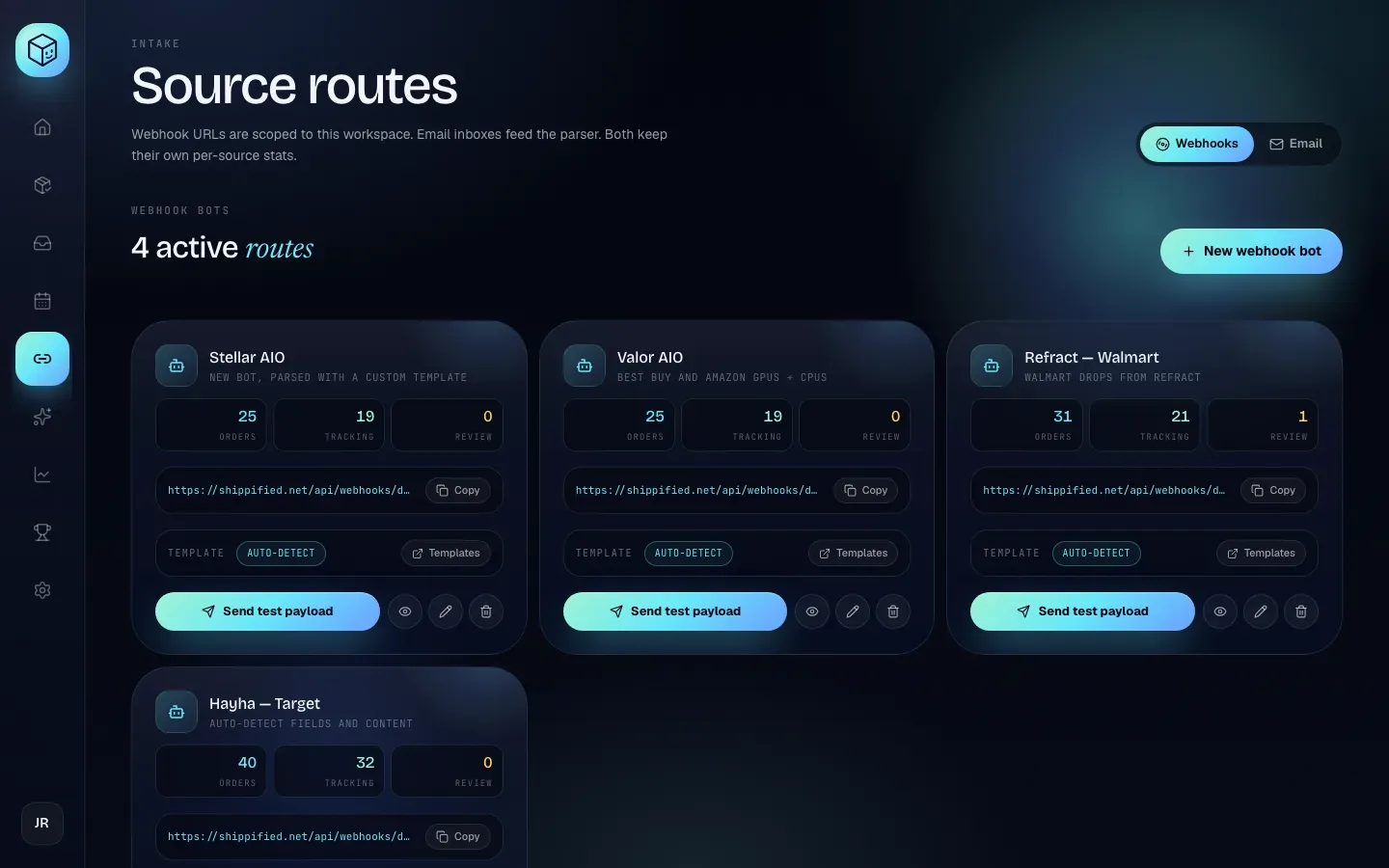
You manage all of this on the Links page, Webhooks tab, which Shippified calls Source routes.
How it works
Your bot finishes a checkout and posts its usual Discord embed, but to your Shippified URL instead of (or as well as) a Discord channel.
Shippified reads the embed with a parser template: a set of rules that says which part of the embed is the order number, the item, the price and so on.
The order is created. If you already have an order with the same order number, the new details are merged into it instead.
If you've asked for it, Shippified posts a short summary of the parsed order to a Discord channel of your choice.
Each webhook bot has its own URL, its own template setting and its own counters, so create one Shippified webhook bot per real bot (for example "Hayha — Target" and "Refract — Walmart"). That keeps your stats, digests and activity logs separate per bot.
The intake URL is the only thing protecting your bot's route. Anyone who has it can post payloads into your workspace and create orders. Keep it as private as a Discord webhook URL: don't paste it in public channels or screenshots.
Before you start
A Shippified account (see Sign in).
Access to your bot's settings, specifically the field where it takes a Discord webhook URL. Every bot names this differently: "Webhook", "Success webhook", "Checkout webhook", "Discord webhook" and so on.
Create a webhook bot
- Open the Webhooks tab
In the sidebar, click Links, then the Webhooks tab at the top right. The heading shows how many bots you have, for example 4 active routes.
- Open the form
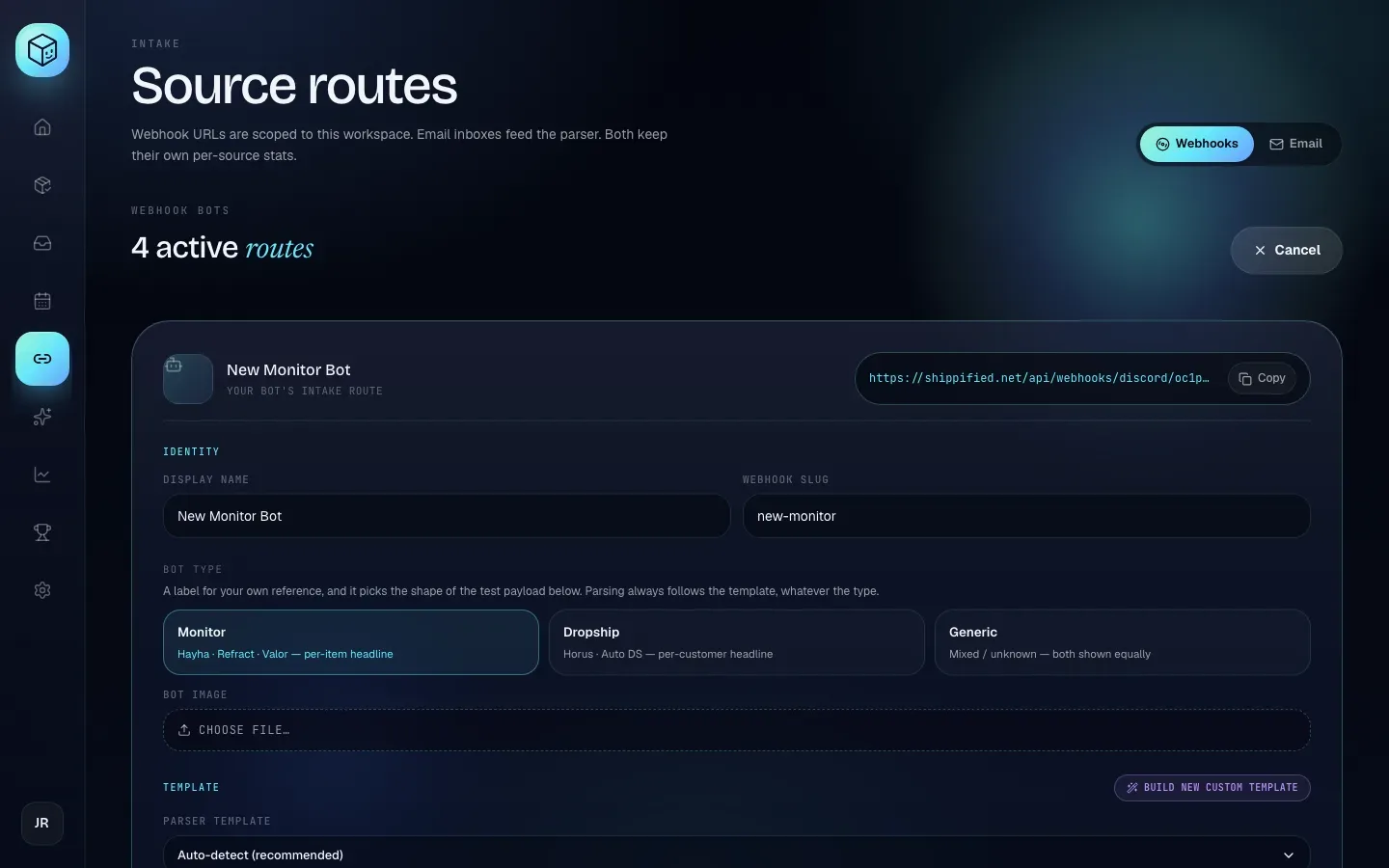
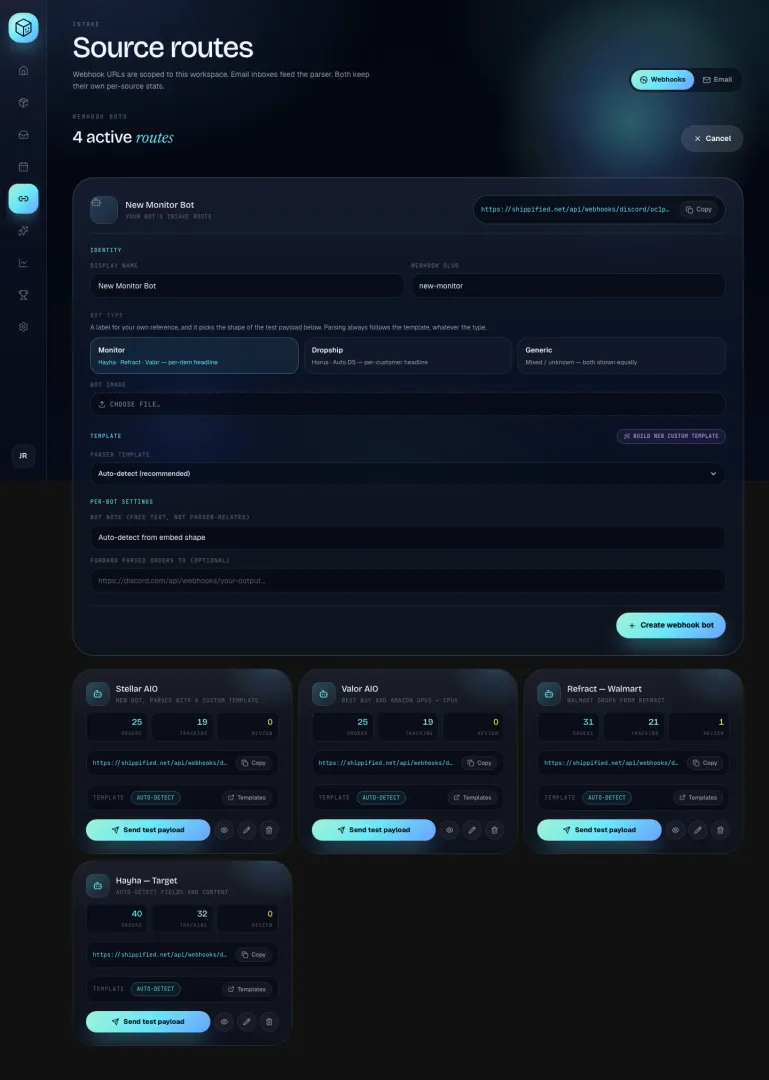
Click New webhook bot. If you don't have any bots yet, the page says No webhook bots yet and you click Create your first bot instead. The form opens above your existing bots, and the New webhook bot button changes to Cancel (click it to close the form without saving).
- Name the bot and pick its slug
Fill in Display name (for example
Hayha — Target) and Webhook slug (for examplehayha-target). The URL preview at the top of the form, next to Copy, updates as you type the slug. - Choose a bot type and image
Pick Monitor, Dropship or Generic under Bot type, and optionally click Choose file… under Bot image to upload an avatar. See the field reference below for what each one does.
- Choose a parser template
Leave Parser template on Auto-detect (recommended) unless you know you need a specific template. See Choose a parser template.
- Add a note and a forward URL (optional)
Type a reminder in Bot note (free text, not parser-related), and paste a Discord webhook URL in Forward parsed orders to (optional) if you want a summary of each order posted to one of your channels.
- Save
Click Create webhook bot. The form closes and the new bot appears as a card in the list. If the save is refused, the form stays open and the reason is shown above the buttons (see Troubleshooting).
- Copy the final URL
On the new card, click Copy next to the URL. Always copy from the card, not from the form preview: Shippified tidies up the slug when it saves (see below), and the card shows the final URL.
What the URL looks like
https://shippified.net/api/webhooks/discord/<your-handle>/<bot-slug><your-handle>is a random identifier for your workspace. It's the same on all your bots.<bot-slug>is the Webhook slug you chose.
When you save, Shippified cleans the slug up:
Capital letters become lowercase.
Anything other than a letter, a number or a hyphen becomes a hyphen, and hyphens at the start or end are removed.
Hayha Target!becomeshayha-target.If the slug ends up empty, Shippified uses the display name instead, and failing that
new-bot(when creating) ororders(when editing).If another of your bots already uses that slug,
-2,-3and so on is added:hayha-target-2.
Form field reference
Field | What to enter | If left blank | Notes |
|---|---|---|---|
Display name | A name you'll recognise, such as | Saved as | Shown on the bot card, on each order from this bot, in the daily digest and in the activity panel. |
Webhook slug | The last part of the URL, such as | Built from the display name. | Changing it later changes the URL (see Edit a bot). |
Bot type | Monitor (Hayha · Refract · Valor — per-item headline), Dropship (Horus · Auto DS — per-customer headline) or Generic (Mixed / unknown — both shown equally). Starts on Monitor. | Monitor. | A label for your own reference that also picks the shape of the test payload. It never changes how real payloads are parsed: parsing always follows the template. |
Bot image | Click Choose file… and pick an image file. Once one is set, the button reads Replace image…. | The card shows a plain robot icon. | Shown on the bot card, next to the bot's group in the daily digest, and as the avatar on forwarded messages. |
Parser template | Auto-detect (recommended), a built-in template (listed as | Auto-detect. | When you pick a template, a line under the menu shows whether it's Built-in or Custom, with its description or its number of mapped fields. |
Bot note (free text, not parser-related) | Anything that helps you remember what the bot is for, such as | Saved as | Shown under the bot's name on its card. It has no effect on parsing. |
Forward parsed orders to (optional) | A Discord webhook URL, such as | No per-bot forwarding. The workspace fallback is used if you have one. | Must be a valid |
The Build new custom template button in the Template section opens the template builder on the Templates page.
Build new custom template leaves the Links page straight away. Anything you've typed into the bot form and not saved is lost. Save the bot first (you can pin the new template to it later), or build the template first and then create the bot.
Paste the URL into your bot
Every bot's settings screen looks different, but the process is the same:
- Open your bot's webhook settings
In your bot's dashboard or config file, find where it asks for a Discord webhook URL. Look for names like Webhook, Success webhook, Checkout webhook or Discord webhook.
- Paste the Shippified URL
Paste the URL you copied from the bot card into the field for successful checkouts. Save the bot's settings.
- Test it
If the bot has a "test webhook" button, press it. Otherwise wait for the next checkout. Then open the bot's activity log in Shippified to confirm the payload arrived.
Shippified accepts the same JSON Discord does, so your bot doesn't need to know it's posting to Shippified. When a payload is accepted, the URL answers with HTTP 202 (accepted).
Want checkouts to keep appearing in your own Discord channel too? Rather than making your bot post to two places, put your Discord webhook URL in Forward parsed orders to (optional). Shippified then posts a summary there after it parses each payload. Some bots only allow one success webhook, and this gets you both.
Point only checkout or order webhooks at Shippified. Every payload that reaches the URL is treated as an order: Shippified never skips a payload from a bot URL because it looks unimportant, and two identical payloads are two separate checkouts (they're only merged if they share an order number). If your bot also sends restock pings or monitor alerts, keep those going to Discord.
Send a test payload
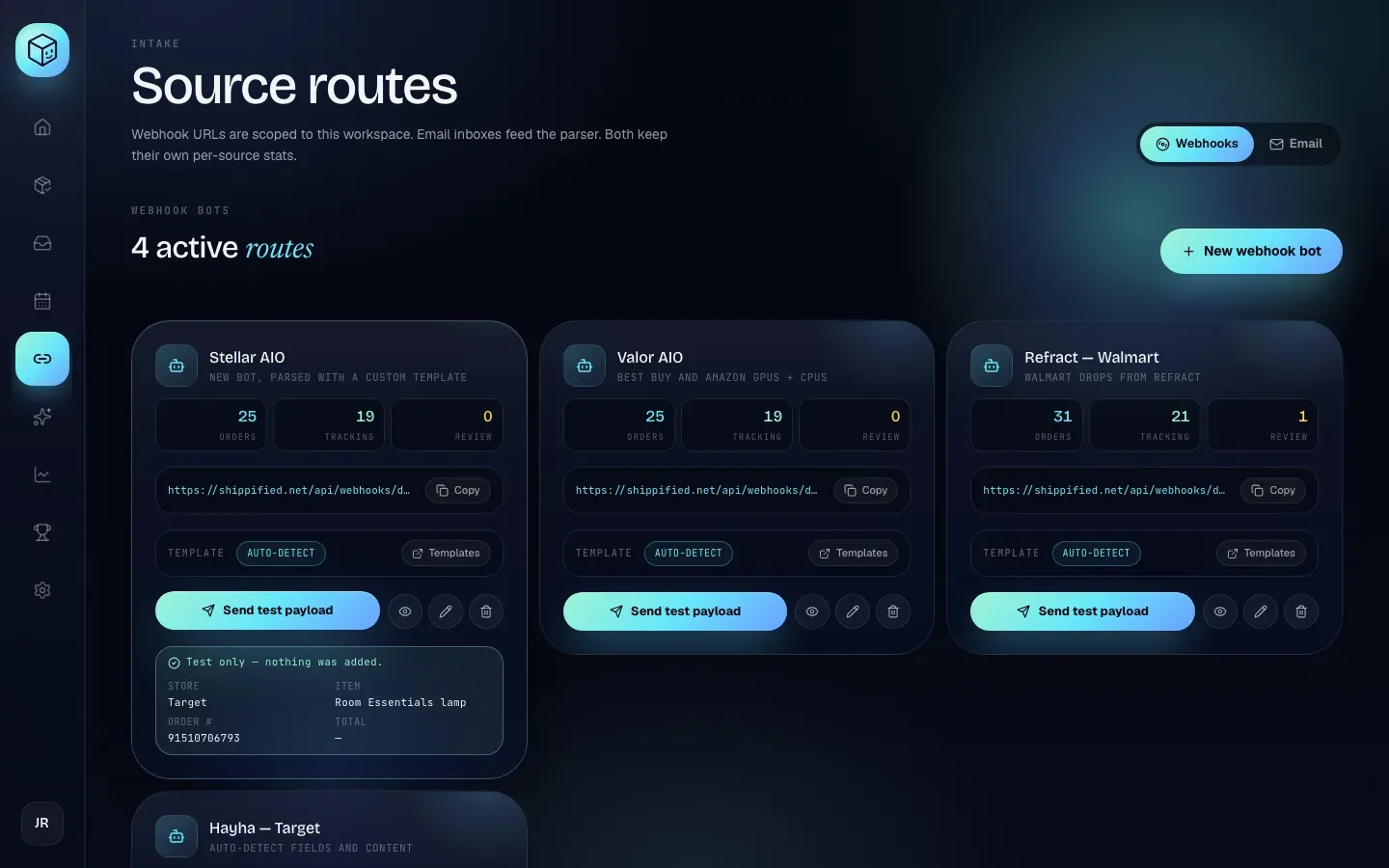
Click Send test payload on a bot card to check a bot's setup without adding anything. Shippified posts a sample embed to that bot's real intake URL, marked as a test. It reads the sample exactly as it would a real checkout, using the same template choice, then stops: no order is created or merged, nothing is forwarded to Discord, and no status ping is sent.
When it's done, a box appears under the button on the card. It starts with the result line and, for a test that reached the bot, lists what Shippified read from the sample: Store, Item, Order #, Total, and Template when a named template was used. A dash means that field wasn't found. The counters on the card don't change.
Result on the card | What it means |
|---|---|
Test only — nothing was added. | The URL works and the sample was read. Check the fields below it. |
Test only — nothing was added. A real post would merge into an existing order. | As above, and you already have an order with the sample's order number, so a real checkout would update that order. |
Test only — no order details could be read from this payload. Check the bot's template. | The URL works, but a real checkout like this would arrive as Unparsed order. |
An error such as Unknown bot webhook route for this user | The URL itself was refused (see Troubleshooting). |
Each test also appears in the bot's activity log with the outcome test and a line starting "Test payload — nothing was added."
The sample depends on the Bot type saved on the bot:
Bot type | Sample embed |
|---|---|
Monitor or Generic | A "Successful Checkout" embed with an order number, profile, item, price, SKU and tracking number. |
Dropship | A "New order" embed with an order number, customer, ship-to city, item, price and quantity, and no tracking number. |
The sample is saved with the bot, so after changing Bot type, click Save changes before sending a test.
Because a test adds nothing, it doesn't check forwarding. To check forwarding, wait for a real checkout and look for its summary in your Discord channel. The sample order in the setup wizard is different: that one is added as a real order.
Choose a parser template
When a payload arrives, Shippified picks one template, in this order:
The bot's pinned template, if Parser template is set to anything other than Auto-detect (recommended). A pinned template is always used, even if its detection rules wouldn't match.
Your custom webhook templates, newest first. The first one whose detection rules all pass is used.
Built-in templates. The first one whose detection rule passes is used.
Whichever template is chosen (or none), Shippified then runs a general pass over the payload to fill in anything the template didn't find. It looks for common embed field names such as "Order Number", "Order #", "Order ID", "Customer", "Profile", "Buyer", "Product", "Item", "Title", "SKU", "Total", "Price", "Amount", "Quantity", "Qty", "Tracking Number", "Tracking", "Carrier", "Store", "Site" and "Retailer". It also spots tracking numbers and "Order #1234"-style text anywhere in the embed. This is why many bots work without any template.
Bots recognised out of the box
Built-in template | Recognised when | Fields it reads |
|---|---|---|
Hayha | The word "Hayha" appears anywhere in the payload's text: the webhook username, message text, embed author, title, description, footer or a field. | Order number, customer/profile, product, image, total, quantity, tracking number, carrier, store/site. |
Refract | The word "Refract" appears in the same places. | Order ID, profile/account, product, image, checkout total, quantity, tracking ID, carrier/service, retailer. |
Valor | "Valor AIO" or "Valor" appears in the same places. | Order number, profile, product, image, total/subtotal, quantity, tracking number, shipping method, site. |
Unknown bots
A bot that isn't in that list still works. Nothing is rejected: Shippified runs the general pass described above and records the parser as generic discord. If your bot uses common field names, orders come through fine.
If the general pass can't find either the item or the store, the order is still created, but it's called Unparsed order, gets the status Issue, and counts under Review on the bot card. That's your signal to build a custom template for the bot. See Custom templates, and use the embed copier or the raw payload in the activity log as your sample.
Which setting to use
Situation | Set Parser template to |
|---|---|
Hayha, Refract or Valor with their standard embeds | Auto-detect (recommended) or the matching built-in |
A bot whose embeds use common field names | Auto-detect (recommended), then check the first few orders |
A bot with unusual field names, or several bots sharing one format | A custom template you built for it |
Two bots whose embeds look alike and keep getting the wrong template | Pin the right template to each bot |
The card's Template row shows Auto-detect or the pinned template's name, with · custom after your own templates. If you pinned a template and later deleted it, the chip shows · missing and the bot falls back to automatic selection. The Templates button in that row opens the template builder.
Read the bot card
Each card shows:
Part | What it means |
|---|---|
Name and subtitle | The Display name. Underneath is the Bot note, or the pinned template's name if the bot has a pinned Parser template. |
Orders | All orders that came from this bot. |
Tracking | Of those, orders that are shipped or delivered. |
Review | Of those, orders with the status Issue (Shippified couldn't read the store or the item). |
URL and Copy | The bot's intake URL and a button that copies it. |
Template | The template setting described above, with a Templates button. |
Send test payload | Sends a sample through the URL as a test and shows what it read. Nothing is added. |
Eye icon (View bot activity) | Opens the activity log. |
Pencil icon (Edit bot) | Opens the edit form. |
Bin icon (Delete bot) | Deletes the bot after you confirm. |
Read the activity log
Click the eye icon on a bot card. A full-height panel slides in from the right over the page, with the bot's name at the top, the heading Activity, and a count such as 12 inbound payloads: "Every Discord webhook hit on this bot's URL, regardless of parse outcome."
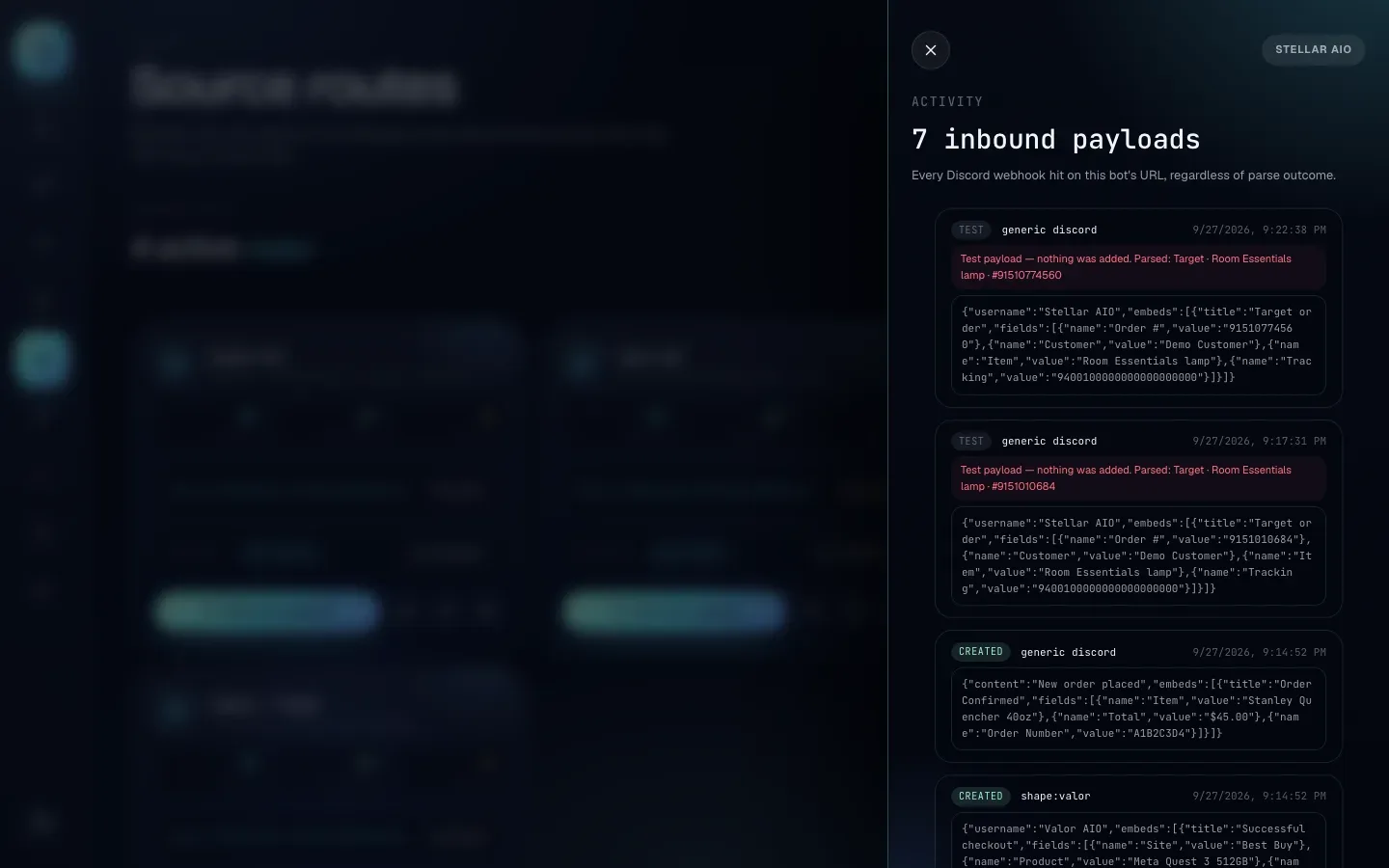
The panel lists the 200 most recent payloads that reached this bot, newest first. It's this bot's own history, so busy bots in the same workspace don't push a quiet bot's entries out. If nothing has arrived yet, it says "Nothing logged yet. Send a payload through <slug> to see it here."
Each entry shows:
an outcome badge (see the table),
the parser that handled it:
shape:hayha(orshape:refract,shape:valor) for a built-in template,custom:…for one of your templates, orgeneric discordwhen no template matched and only the general pass ran,the date and time it arrived,
any error message, and
the first 600 characters of the raw payload.
Outcome | Meaning |
|---|---|
created | A new order was created. |
merged | The payload matched an existing order by order number and updated it. |
review | Either Shippified couldn't read the store or the item (the order was created with status Issue), or forwarding the summary to Discord failed. When forwarding failed, the error line says so. |
rejected | No order was created, most often because your plan's monthly order limit was reached (error |
test | A Send test payload check. Nothing was added. |
Close the panel with the X at the top or by clicking the dimmed page beside it. It reloads each time you open it.
Shippified keeps up to 5,000 log entries per workspace, shared by all your bots, and stores up to 20,000 characters of each payload. Payloads refused by a rate limit or sent to an unknown URL never reach your workspace, so they aren't logged.
Entries marked review usually just need a template. Copy the raw payload from the log, paste it into the template builder as the sample, map the fields your bot uses, then use Re-run parsing on the Templates page to fix the orders that already came in. See Custom templates.
Forward parsed orders to Discord
Shippified can post a summary of every parsed payload to a Discord channel. There are two places to set this:
Per bot: Forward parsed orders to (optional) on the bot form.
Fallback for all bots: Bot throughput fallback webhook in Settings → Forwarding. Any bot without its own forward URL uses this one. See The Shippified Discord bot.
To get a Discord webhook URL, open the channel's settings in Discord, go to Integrations → Webhooks, create a webhook and copy its URL.
The summary is posted as "Shippified", with your bot image as the avatar if the bot has one. It reads "Parsed Store order number", uses the item as the embed title, and has fields for Source (the bot name), Store, Status, Tracking ("Needs review" when there isn't one yet) and Parser. It's sent for every payload that creates or updates an order, and never for payloads refused by your plan limit.
Shippified answers your bot first and forwards afterwards, so a slow Discord never makes your bot time out or resend.
Forwarding behaviour | Detail |
|---|---|
Attempts | Up to 3, waiting about 1.5 seconds before the second and 4 seconds before the third. |
Timeout | Each attempt waits up to 8 seconds. |
Retried | Rate limiting (HTTP 429), server errors (5xx) and network errors. |
Not retried | Other 4xx errors, such as a deleted webhook. These fail straight away. |
Address check | The URL must point at a public address. It's checked when you save and again every time Shippified sends. |
A failed forward never loses the order: the order is still created or updated. The log entry is marked review with a message naming which URL failed, for example output webhook forward failed after 1 attempt: HTTP 404 (HTTP 404) for the bot's own URL, or fallback webhook forward failed after 3 attempts: HTTP 503 (HTTP 503) for the workspace fallback.
Edit a bot
- Open the edit form
Click the pencil icon on the bot card. A full-width Edit bot panel opens at the top of the list, where the new bot form appears, headed "Editing bot name — details, template, and forward target." It has the same fields as the create form, filled in with the bot's current values, and the New webhook bot button changes to Cancel.
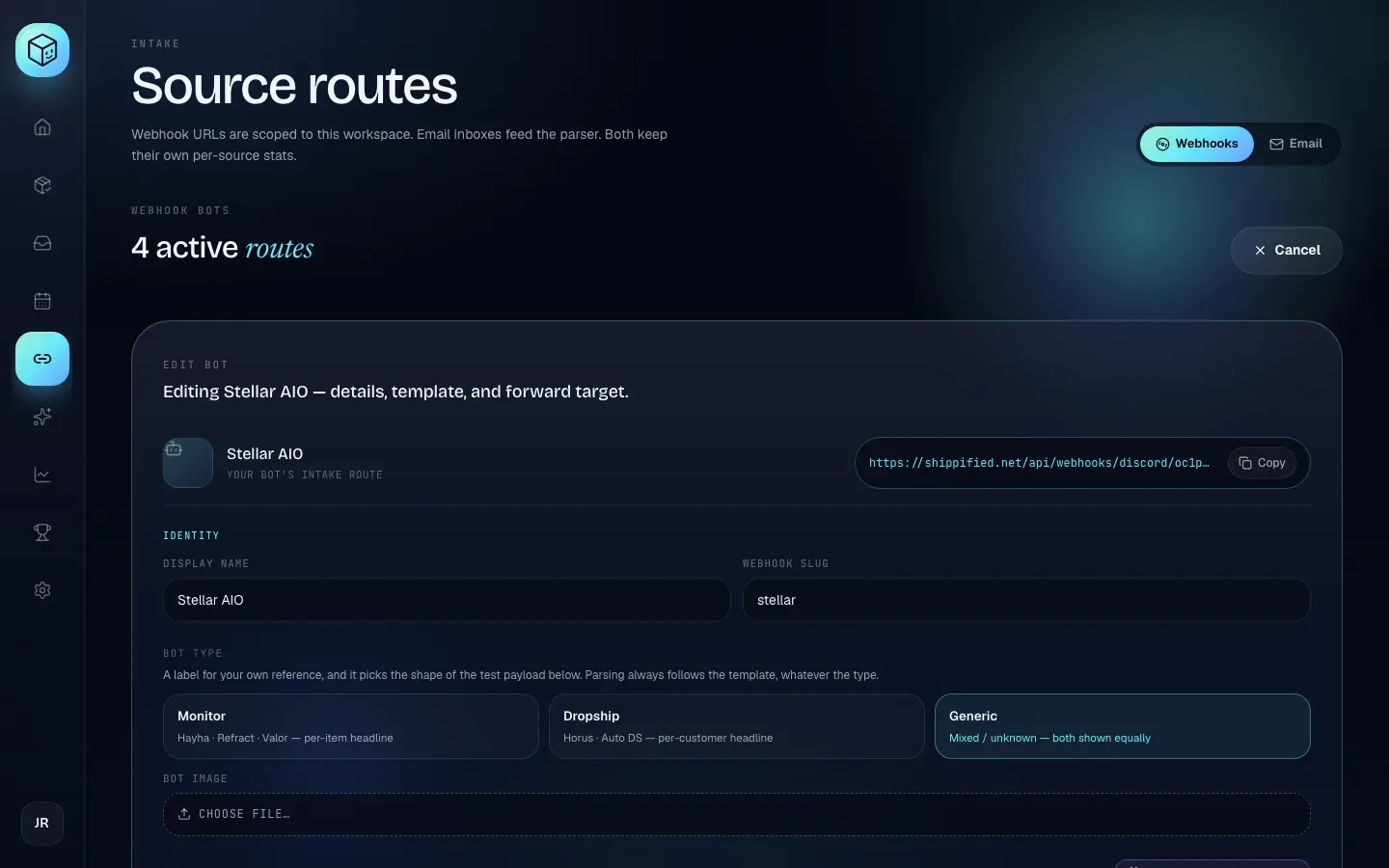
- Change what you need
Every field works as described in the field reference.
- Save
Click Save changes, or Cancel to close without saving. Clicking the pencil icon again also closes the form. If the save is refused, the panel stays open and shows the reason.
Changing Webhook slug changes the bot's URL, and the old URL stops working immediately (it answers "Unknown bot webhook route for this user"). Paste the new URL from the card into your bot straight after saving, or you'll miss checkouts.
To stop using a pinned template, edit the bot and choose Auto-detect (recommended).
Delete a bot
Click the bin icon on the bot card. The card asks Delete this bot? and explains: "Orders already parsed by it stay in your workspace. The webhook URL stops accepting new payloads." Click Delete bot to confirm, or Keep it to back out.
Deleting a bot can't be undone. Its URL stops working at once, so remove it from your bot's settings first. Its orders stay, but they're no longer linked to a bot card. If you later create a bot with the same slug, you get the same URL back, but it's a new bot with fresh counters.
Limits
Because intake URLs can't use passwords, they're rate limited:
Limit | Value | What your bot gets back |
|---|---|---|
Per sending IP address, across all your bots | 60 requests per minute | HTTP 429 "Webhook ingest rate exceeded (60/min per IP)", with |
Per bot | 60 requests per minute | HTTP 429 "Webhook ingest rate exceeded for this bot (60/min)", with |
Normal checkout volume is far below these. If you run many bots from one server, they share the per-IP limit, so a mass test run from one machine can reach it.
When your plan's monthly order limit has been reached, Shippified still answers your bot with HTTP 202 so it doesn't keep retrying, but it doesn't create the new order. The activity log shows rejected with plan_limit_reached (used/limit). Payloads that update an order you already have still go through. See Plans and billing.
Public feed mirror
If you've turned on Include my checkouts in public stats in Settings → Profile, and Shippified's public feed is running, each order your bots create or update is also posted to Shippified's public Discord feed.
The public post is a short card built from four details only: the item, the store, the price and the product image. It's always posted under the name "Shippified", never your bot's name. Your bot's original embed is never reposted, so order numbers, tracking numbers, profile and customer names, emails and addresses don't appear. To keep even the item, store and price out of the feed, leave Include my checkouts in public stats off. See Sharing and profiles.
Troubleshooting
My bot says 404 "Unknown webhook URL"
The workspace part of the URL (the part after /discord/) doesn't match any workspace. The URL was probably cut off or mistyped when you pasted it. Copy it again with Copy on the bot card and paste the whole thing.
My bot says 404 "Unknown bot webhook route for this user"
The workspace is right but no bot has that slug. Either the slug was changed in Shippified, the bot was deleted, or the slug was mistyped. Copy the URL again from the bot card. Nothing is logged for these requests, so the activity log stays empty.
Nothing appears in the activity log
Shippified logs every payload that reaches a real bot URL, so an empty log means nothing arrived. Check that:
the URL in your bot's settings matches the card exactly, including the slug;
you pasted it in the success or checkout webhook field, not a "failed checkout" or "restock" field;
the bot has actually checked out since (or use its test-webhook button);
you haven't hit the rate limit (your bot's own logs would show HTTP 429).
Then click Send test payload on the card. If that shows up but your bot's payloads don't, the problem is on the bot's side.
Orders arrive as "Unparsed order" with status Issue
No template recognised the item or the store, so Shippified couldn't tell what was bought. Build a custom template from one of the raw payloads in the activity log and pin it to the bot. Then use Re-run parsing on the Templates page to fix the orders already imported. See Custom templates.
Some fields are wrong or empty
The general pass guessed wrong, or a different template matched. Pin the right template to the bot so nothing is left to detection, or adjust your custom template's field mappings. The activity log's parser column tells you which template handled each payload.
Create webhook bot or Save changes shows an error
The form stays open when the save is refused, and the reason appears above the buttons. The most common cause is the Forward parsed orders to (optional) URL: it must be a complete http or https URL (up to 2,048 characters) whose host exists and isn't a private, local or loopback address. The reasons you may see are outputWebhook: url is malformed, outputWebhook: url must be http(s), outputWebhook: url hostname does not resolve and outputWebhook: url cannot point at private / loopback addresses. Paste a Discord webhook URL, or clear the field, and save again.
Forwarded messages stopped
Look for review entries in the activity log that mention forward failed. HTTP 404 usually means the Discord webhook was deleted: create a new one and paste it into the bot (or the fallback in Settings → Forwarding). HTTP 429 means Discord is rate limiting that channel.
Entries say rejected with plan_limit_reached
You've used your plan's new orders for this month. Updates to existing orders still work. Upgrade or wait for the limit to reset. See Plans and billing.
For more help, see Troubleshooting. Developers can find the endpoint reference in Webhooks.