📋Embed copier
Copy any bot embed you can see in Discord into Shippified as a sample, then build a parser template from it.
- Written for
- Anyone building a custom template for a bot Shippified doesn't recognise
- Applies to
- All plans
- Deprecated
- + Deprecated
The quickest way to build a template for a monitor bot is to start from a real embed it posted. But the bot's embeds often live in a cook group or someone else's server, where you can't add a webhook or see the raw JSON. The embed copier solves that: from inside Discord, you send any embed you can see to your Shippified workspace. It's saved as a sample, and you load it into the template builder with one click.
The embed copier doesn't create orders. It only collects samples for building custom templates. To import checkouts, point your bot at a webhook URL instead (see Connect Discord monitor bots).
Two ways to copy
Both send to the same place, and both use the same submission URL.
Method | Available when | How you copy |
|---|---|---|
Shippified bot, Apps menu | The Shippified bot is in the server (see The Shippified Discord bot) | Right-click a message, then Apps → Copy embed to Shippified |
Embed-copier bot, slash commands | Your Settings page shows Invite the embed-copier bot, and that bot is in the server |
|
The Apps menu is quicker because you don't need to copy a message link. The embed-copier bot is useful when you can't add the Shippified bot to a server but its admins will add the embed-copier bot.
Before you start
A Shippified account.
In the server you want to copy from: one of the two bots added, which needs someone with permission to add apps (usually Manage Server).
For
/copy: the embed-copier bot needs View Channel and Read Message History in the channel the embed is in.
Step 1: Get your submission URL
- Open the Developer tab
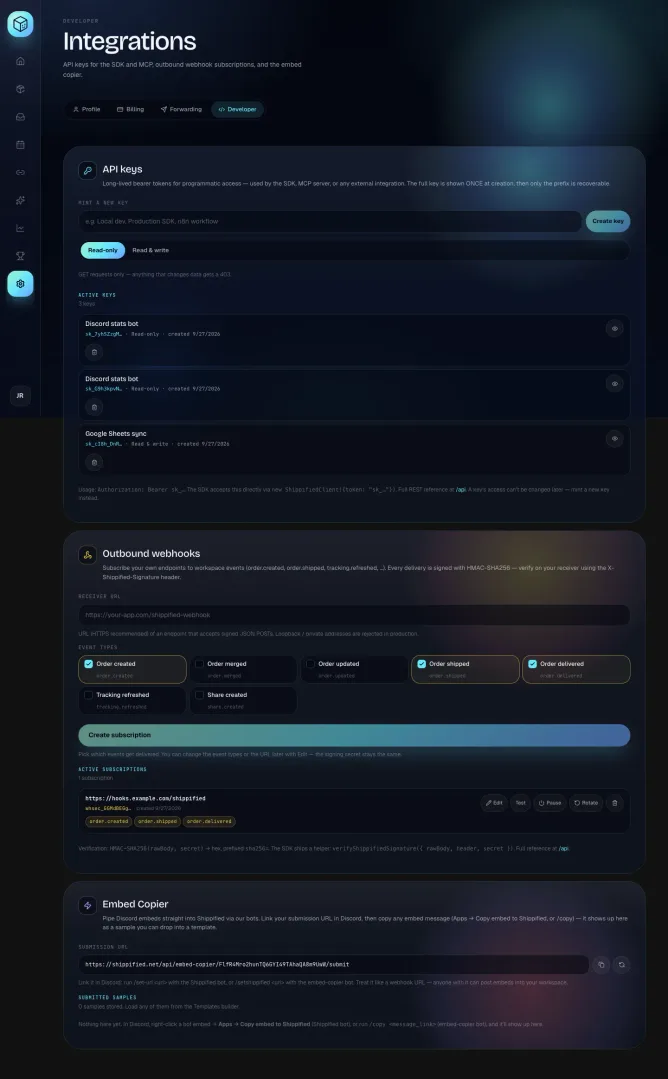
In the sidebar, click Settings, then the Developer tab. Scroll to Embed Copier.
- Copy the URL
Under Submission URL (called Step 2 — Submission URL when an invite button is shown above it), click the copy icon (Copy URL) next to the address. The icon briefly turns into a tick to show it's copied.
The URL looks like this:
https://shippified.net/api/embed-copier/<secret>/submitThe <secret> part is a long random code unique to your workspace. It's created the first time you open this section.
Treat the submission URL like a password. As the hint says: "Treat it like a webhook URL — anyone with it can post embeds into your workspace." Don't paste it in a public channel. The bots' link commands reply only to you, so running them in a shared channel is safe.
Step 2: Link your Discord account
You do this once per Discord account. Both bots save the URL against your Discord account, not against the server, so it works in every server where the bot is.
- Shippified bot
- Embed-copier bot
In any channel where the Shippified bot is installed, run:
/set-url url:https://shippified.net/api/embed-copier/<secret>/submitThe bot replies (only to you): "Saved. Right-click any message → Apps → Copy embed to Shippified to forward its embed to your workspace."
If Settings → Developer → Embed Copier shows Step 1 — Add the bot to your server, click Invite the embed-copier bot, choose your server in Discord and approve. The bot asks to view channels, send messages and read message history.
Then, in any channel where it's present, run:
/setshippified url:https://shippified.net/api/embed-copier/<secret>/submitThe bot replies (only to you): "Submission URL saved. Now run /copy <message_link> on any embed message to pipe it into Shippified."
Both bots only accept a URL that ends in /api/embed-copier/<secret>/submit. Anything else gets "That doesn't look like a Shippified submission URL…".
Both bots keep your link in the same place on Shippified's side. Linking with one links the other for the same Discord account, and running /unlink removes it for both.
Step 3: Copy an embed
- Apps menu (Shippified bot)
- /copy (embed-copier bot)
Find a message from the bot with an embed, such as a checkout success.
Right-click it (on mobile, press and hold) and choose Apps → Copy embed to Shippified.
The bot replies
Forwarded "<embed title>" to your Shippified library.
The sample is named after the embed's title. The sample's "by" line shows the author of the copied message (usually the bot), not you.
Right-click the message and choose Copy Message Link.
Run:
/copy message_link:<paste the link> name:Lumen checkoutnameis optional, a label for the sample. Without it, the sample is named after the embed's title.The bot replies: "Submitted. It's now under Settings → Embed Copier in your workspace, and ready to load from the Templates builder."
Links from Discord's Canary and PTB apps work too. Links to messages in DMs don't.
Other embed-copier bot commands
Command | What it does |
|---|---|
| Shows the URL you're linked to, with the secret partly hidden, as |
| Removes your link. "Unlinked. |
| Lists the commands. |
What gets copied
Only the first embed on the message: its title, description, fields, footer, author, images and colour. The rest of the message and the webhook's username aren't copied.
Some bots put their name only in the webhook username, not in the embed. A copied sample won't show it, so a detection rule that looks for the bot's name won't find it in the sample. If the bot already posts to one of your Shippified webhook URLs, copy the complete payload from that bot's activity log instead (see Read the activity log).
Step 4: Build a template from the sample
- Open the template builder
Go to Templates, choose Webhook, and click Build template. Or open one of your existing webhook templates with Edit template.
- Check the source
Make sure Source is Webhook JSON. Load from Discord only appears for webhook templates.
- Load the sample
Next to Sample payload, click Load from Discord and pick a sample under Submitted samples. Each shows its name, the server it came from (for
/copy) and when it was sent.
The builder replaces the current sample with the embed, wrapped the way a real webhook payload looks:
{
  "embeds": [
    {
      "title": "Successful Checkout",
      "fields": [
        { "name": "Product", "value": "Wireless Earbuds Pro" },
        { "name": "Order", "value": "||912000111222||" }
      ],
      "footer": { "text": "Lumen Monitors v3.2" }
    }
  ]
}
Because the embed is always the first item, JSON paths start with embeds[0], for example embeds[0].footer.text. From here, add detection rules and field mappings as described in Custom templates. If you haven't copied anything yet, the picker explains how to set up the bot.
Manage your samples
All your samples are listed under Settings → Developer → Embed Copier, below Submitted samples. The line under the heading counts them: "3 samples stored. Load any of them from the Templates builder." With none, it says "Nothing here yet. In Discord, right-click a bot embed → Apps → Copy embed to Shippified (Shippified bot), or run /copy <message_link> (embed-copier bot), and it'll show up here."
Each sample shows its name, the server (after "from") and the person who copied it (after "by") when known, the date and time it arrived, and these controls:
Control | What it does |
|---|---|
Open original | Opens the source message in Discord. Shown when the link is known. |
Submit for review | Flags the sample for the Shippified team to consider for the built-in template library. The button then reads In review; click it again to withdraw. |
Bin icon (Delete sample) | Deletes the sample straight away, with no confirmation. |
Deleting your Shippified account removes all your samples. If you signed in with Discord, it also removes the submission URL saved for that Discord account. See Account and privacy.
Rotate the URL
Rotate the submission URL if it may have leaked, or to cut off every Discord account that's linked to it.
- Rotate
Click the circular-arrow icon (Rotate URL) next to the submission URL. Shippified asks Rotate your submission URL?: "The bot will need the new one — the old URL stops working immediately."
- Confirm
Click Rotate URL. The box shows the new URL.
- Relink
Copy the new URL and run
/set-urlor/setshippifiedagain with it (step 2). Anyone else who linked the old URL has to be given the new one.
Rotating can't be undone, and the old URL stops working at once. Copies sent to it fail with a 404 until you relink. Your existing samples aren't affected.
Limits
Limit | Value |
|---|---|
Submissions per workspace | 30 per minute. Beyond that, copies are refused until the minute is up: |
Samples kept | Your 50 most recent. When a new one arrives, the oldest beyond 50 is removed automatically. |
Sample name | Up to 80 characters. Longer names are cut. With no name and no embed title, it's called "Untitled sample". |
Embeds per copy | The first embed on the message. |
Security
The submission URL is the only thing that lets a sample into your workspace. Anyone who has it can add samples, but can't read your samples, orders or anything else.
Samples never become orders, so a leaked URL can't change your order data or stats. The worst it can do is add up to 30 unwanted samples a minute and push your real ones out of the 50 kept. Rotate the URL if that happens.
The bots' replies are private to you (Discord shows them as "Only you can see this").
The Shippified bot asks only for Send Messages and Embed Links. The embed-copier bot asks to view channels, send messages and read message history, which it needs to fetch the message you link.
Troubleshooting
"That doesn't look like a Shippified submission URL…"
The URL you gave the bot isn't a submission URL. Copy it again from Settings → Developer → Embed Copier with the copy icon. It must end in /submit. Don't confuse it with a webhook bot URL from the Links page, which ends in your bot's slug.
"Bind your submission URL first…" or "Set your submission URL first…"
Your Discord account isn't linked. Run /set-url (Shippified bot) or /setshippified (embed-copier bot) with your submission URL, then copy again.
"Couldn't reach your submission URL (HTTP 404)" or "Shippified rejected the URL (404)"
The URL was rotated, or belongs to a deleted workspace. Copy the current URL from Settings and link it again.
"This message has no embed to copy." or "That message has no embeds."
You picked a plain text message. Choose the bot's message that shows a card-style embed.
"Couldn't fetch that message…"
The embed-copier bot can't see that channel. Ask a server admin to give it View Channel and Read Message History there. It also can't reach servers it hasn't been added to.
"That message link looks malformed."
Use Copy Message Link in Discord and paste it without changes. Links to DMs are refused too.
"Couldn't read the target message. Try again from the Apps menu."
Discord didn't pass the message to the Shippified bot. Right-click the message and choose Apps → Copy embed to Shippified again.
I don't see Apps → Copy embed to Shippified
The Shippified bot isn't in this server, or your role isn't allowed to use app commands in this channel. Add the bot (see The Shippified Discord bot) or ask an admin to allow application commands.