💬The Shippified Discord bot
Add Shippified's bot to your server for a daily checkouts digest, set up forwarding and status pings, and understand the network-wide drop recaps.
- Written for
- Anyone who wants Shippified to post recaps and updates into their Discord server
- Applies to
- All plans
- Deprecated
- + Deprecated
Shippified has its own Discord app, the Shippified bot. Add it to your server and it can:
post a daily checkouts digest to a channel you choose, with buttons to page through it and change how it's grouped;
let you copy embeds into Shippified from Discord's Apps menu, to build templates from (see Embed copier);
include your checkouts in Shippified's network-wide drop breakdown and drop leaderboard, if you opt in.
All of the Discord output settings live on one page, Settings → Forwarding, which Shippified calls Outputs & inboxes. This guide covers every control on it, including the two webhook fields that don't need the bot at all.
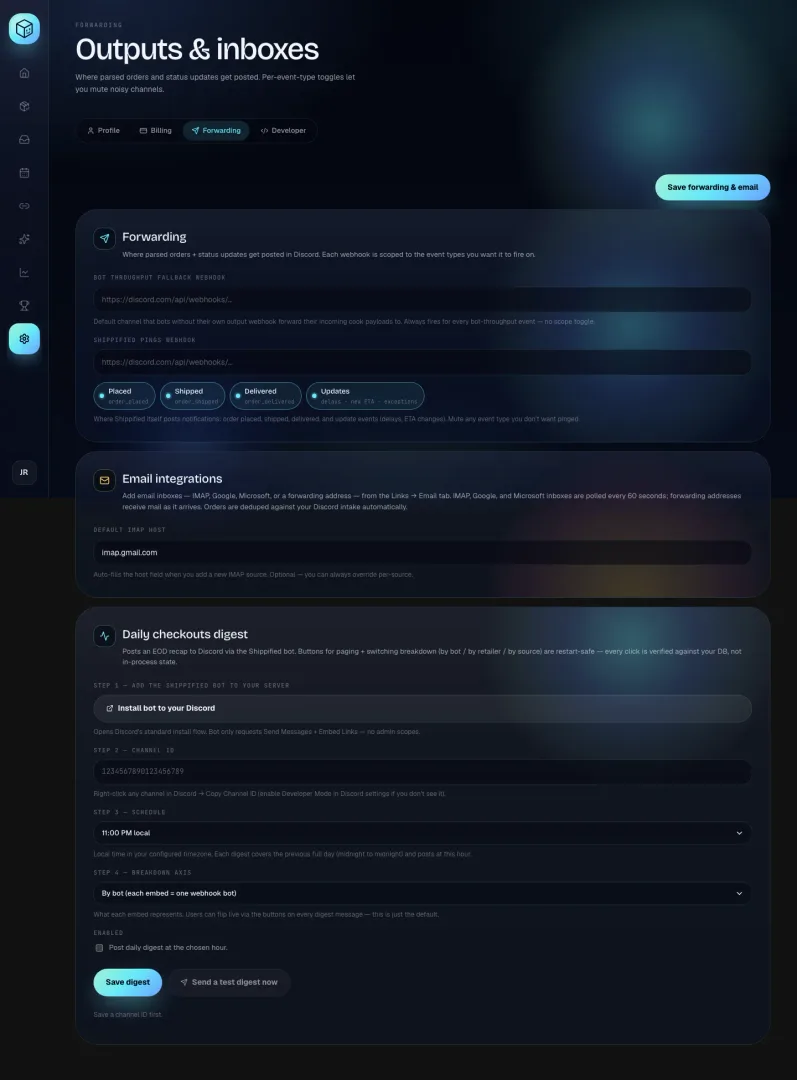
You don't need the Shippified bot to import orders. Your monitor bots post straight to your webhook URLs (see Connect Discord monitor bots). The Shippified bot is for digests and embed copying.
Add the bot to your server
- Open the digest card
In the sidebar, click Settings, then the Forwarding tab, and scroll to Daily checkouts digest. (The card only appears when the Shippified bot is set up on the server you're using.)
- Start the install
Under Step 1 — Add the Shippified bot to your server, click Install bot to your Discord. Discord's standard install page opens in a new tab.
- Pick a server and approve
Choose your server and click through Discord's prompts. Only servers where you're allowed to add apps (usually with Manage Server) are listed.
The bot asks for two permissions only, Send Messages and Embed Links, plus permission to add its commands. It doesn't ask for admin rights. As the hint says: "Bot only requests Send Messages + Embed Links — no admin scopes."
Once it's in, the bot also adds two commands to the server: /set-url and Apps → Copy embed to Shippified. They're for the embed copier and reply only to the person using them.
Checklist for server admins
Make sure the bot can view the digest channel and send messages and embed links there. A channel-level permission override can block it even when its role allows it server-wide.
Use a private channel for the digest. It shows your spend and, when your bots report them, customer or profile names.
Anyone who can see the digest can use its buttons. The buttons only change how that message is displayed; they can't change anything in your workspace.
For the Apps-menu copy command, members need permission to use application commands in that channel.
Set up the daily digest
The digest is a recap of one day's checkouts, posted by the Shippified bot to a channel of your choice at a time you pick.
- Install the bot
Complete Add the bot to your server first. The bot can only post in servers it's in.
- Copy the channel ID
In Discord, right-click the channel the digest should go to and choose Copy Channel ID. If you don't see that option, turn on Developer Mode in Discord's settings (under Advanced) and try again.
- Paste it into Step 2
Paste the ID into Step 2 — Channel ID. It's a long number, like the placeholder
1234567890123456789. - Pick the hour
Under Step 3 — Schedule, choose when the digest should post. The options run from 12:00 AM local to 11:00 PM local; the default is 11:00 PM local.
- Pick the default grouping
Under Step 4 — Breakdown axis, choose what each part of the digest represents. The default is By bot (each embed = one webhook bot). See Breakdown options.
- Turn it on
Under Enabled, tick Post daily digest at the chosen hour.
- Save
Click Save digest (the button inside the digest card). It reads Saving…, then briefly Saved. If the save fails, the reason appears in red under the buttons.
- Test it
Click Send a test digest now. It posts today's checkouts so far to the saved channel, using the saved breakdown, whether or not Enabled is ticked. If it works, a digest appears in your channel and the card shows "Posted (Discord message id …)." If not, the error appears in red under the buttons. See Troubleshooting.
The digest card has its own Save digest button. The Save forwarding & email button at the top of the page saves only the Forwarding and Email integrations cards, not the digest. Send a test digest now stays greyed out until you've saved a channel ID, and again whenever the channel ID or breakdown in the card differs from what's saved; the line under the buttons says "Save a channel ID first." or "Click Save digest first — the test uses the saved channel and breakdown."
When it posts
"Local" means the Timezone in Settings → Profile. If none is set, UTC is used.
Shippified checks every 15 minutes and posts once a day, at the first check after your chosen hour. It may arrive up to about 15 minutes past the hour.
The scheduled digest covers the previous full day, midnight to midnight in your timezone. With 9:00 AM local, the digest posted on Tuesday morning covers all of Monday. With the default 11:00 PM local, Tuesday's late-night post still covers Monday.
If you turn the digest on (or save a new hour) after that hour has already passed today, the day's digest posts at the next check, within about 15 minutes.
Send a test digest now covers today so far, not yesterday, so a test early in the day may show a "quiet day".
If a scheduled post fails, for example because the bot can't see the channel, Shippified tries again at each check for the rest of that day.
Orders count on the day Shippified received them. For orders from email, that's the date on the email.
To stop the digest, untick Enabled and click Save digest.
Breakdown options
Option | Each embed is | Notes |
|---|---|---|
By bot (each embed = one webhook bot) | One of your webhook bots | Uses the bot's display name and image. Orders that didn't come from a bot are grouped by where they came from, for example "Email (no bot)". |
By retailer (Target / Walmart / Amazon / …) | One retailer | Orders whose store couldn't be read appear as "Unknown". |
By source (webhook / email / manual) | One source, such as Discord or Email | Useful to compare bot and email volume. |
This is only the default. Anyone looking at a digest can switch it with the buttons on the message.
Read a digest
The first embed is a summary: the date, then total orders, total units and total spend, for example 14 orders · 17 units · $1,236.50 spend. Its footer shows your workspace name, the page number and the grouping.
Each embed after that is one group (a bot, a retailer or a source), sorted by number of orders, with these fields:
Field | Shown when | What it is |
|---|---|---|
Checkouts, Units, Spend | Always | Orders in the group, units (quantity, counting 1 when not known) and total cost. |
Sales, Profit, Margin | You've entered sale prices for some of the group's orders | Sale prices, sale prices minus cost, and profit as a percentage of sales. |
By retailer | The group spans more than one retailer | Orders per retailer, top five. |
Top items | Always | Up to five of the group's items, with quantities. |
Top customers | Your bots report customer or profile names | Up to five names, with 🥇🥈🥉 for the top three, ranked by checkouts then spend. |
The side colour of each group embed tells you at a glance: green for profit, red for a loss, and blue when no sale prices have been entered. Enter sale prices on your orders to see profit (see Profitability).
A day with no orders gets a single amber "quiet day" embed ("No cooks landed this day. Tomorrow we ride.") with no buttons.
Digest buttons
Each digest shows up to nine groups per page. Underneath are two rows of buttons:
Button | What it does |
|---|---|
← Prev / Next → | Moves between pages. Greyed out on the first and last page. |
Page counter (for example 1/2) | Shows where you are. Not clickable. |
By bot, By retailer, By source | Regroups the same day and goes back to page 1. The current grouping is highlighted and greyed out. |
Clicking a button redraws that message in place. The buttons keep working on old digests and after Shippified restarts, because each click rebuilds the digest from your current data. That also means an old digest reflects any changes you've made to those orders since.
Forwarding tab reference
Every control on Settings → Forwarding, top to bottom.
Save forwarding & email
The Save forwarding & email button at the top right saves the Forwarding and Email integrations cards. It reads Saving…, then briefly Saved. If Shippified refuses a URL, the reason is shown under the button instead: fix the URL and try again.
Forwarding card
Control | What it does |
|---|---|
Bot throughput fallback webhook | A Discord webhook URL. Every order parsed from a webhook bot that has no Forward parsed orders to URL of its own gets a summary posted here. "Always fires for every bot-throughput event — no scope toggle." The message format and retry rules are in Forward parsed orders to Discord. Leave blank for no fallback. |
Shippified pings webhook | A Discord webhook URL where Shippified posts order status notifications, as "Shippified", with the item, Status, Store, Tracking and Carrier. |
Placed ( | Post a ping when an order is placed. |
Shipped ( | Post a ping when an order ships. |
Delivered ( | Post a ping when an order is delivered. |
Updates (delays · new ETA · exceptions) | Post a ping for other updates, such as out for delivery or a delay. |
The four event chips are all on by default. Click a chip to turn it off (mute that event) and again to turn it back on, then click Save forwarding & email. They only affect the Shippified pings webhook, never the fallback webhook.
Pings are sent whatever noticed the change: webhook bot checkouts, every kind of email inbox (IMAP, Google, Microsoft, forwarding), Import an email by hand, orders you add with New order or through the API, and live carrier tracking. A new order pings for the event that created it. A message about an order you already have pings only when it moves the order's status (a cancellation is posted under Updates, labelled "Canceled"), or when the message is itself an update such as a delay or new ETA; a repeat of the same status stays quiet.
If a webhook bot's checkout is forwarded to the same URL as the Shippified pings webhook (the bot's Forward parsed orders to URL, or the fallback webhook when the bot has none), the Placed ping for that checkout is skipped so the channel doesn't get it twice. Later pings (shipped, delivered, updates) still go out. With different URLs, both posts are sent.
Old mail read by a mailbox rebuild, a bot's Send test payload (a dry run that adds nothing), and changes you make yourself in an order's editor don't send pings.
Both URLs must be complete http or https addresses that point at a public host. To get one, open the channel's settings in Discord, go to Integrations → Webhooks, create a webhook and copy its URL. To stop posting, clear the field and click Save forwarding & email.
Email integrations card
Control | What it does |
|---|---|
Default IMAP host | Pre-fills the host when you add a new IMAP inbox, for example |
Daily checkouts digest card
Control | What it does |
|---|---|
Install bot to your Discord | Opens Discord's install page in a new tab. |
Step 2 — Channel ID | The channel the digest posts to. |
Step 3 — Schedule | The hour it posts, in your timezone. |
Step 4 — Breakdown axis | The default grouping. |
Enabled | Whether the scheduled digest runs. |
Save digest | Saves this card only. |
Send a test digest now | Posts today's checkouts so far to the saved channel with the saved breakdown, whether or not the digest is enabled. Greyed out until a channel ID is saved and the card has no unsaved channel or breakdown changes; shows Posting… while it works. |
Drop breakdown and drop leaderboard
Shippified also posts two network-wide recaps once a day in its own Discord channels. They cover the previous full day and include only workspaces that have turned on Include my checkouts in public stats in Settings → Profile. With that setting off, your orders are left out entirely.
Recap | One embed per… | Fields |
|---|---|---|
Drop breakdown | Item, top nine by units | Units, Workspaces, Spend, and Top bots (units per bot, top ten) |
Drop leaderboard | Bot, top nine by checkouts | Checkouts, Units, Workspaces, and Workspace ranking (top 15 workspaces by checkouts) |
A day with no qualifying checkouts gets a short "quiet day across the network" or "no leaderboard for this day" post instead. When there are more than nine items or bots, the footer says how many more there were.
Things to know if you opt in:
Bots are pooled by the display name you gave them, ignoring capitals and extra spaces. To be counted with everyone else's Hayha bot, name yours "Hayha", not "My Hayha #2".
Your workspace appears under its Workspace name from Settings → Profile, and your bots under their display names. Items, units and spend are shown. Order numbers and tracking numbers aren't.
Include my checkouts in public stats also puts you on the in-app leaderboard and your public profile, and can post a short card for each of your bots' orders (item, store, price and image) to Shippified's public feed. Read Public feed mirror and Sharing and profiles before turning it on. Your Workspace name is shown too, so pick one you're comfortable making public.
Troubleshooting
Install bot to your Discord shows "Discord integration is not configured on this deployment."
The Discord integration isn't switched on for the Shippified you're using. The digest and Apps-menu commands aren't available there. Contact support if you think this is wrong.
Send a test digest now is greyed out
Read the line under the buttons. "Save a channel ID first." means no channel is saved yet: paste one into Step 2 — Channel ID and click Save digest. "Click Save digest first — the test uses the saved channel and breakdown." means you've changed the channel ID or breakdown since saving: click Save digest, then test.
The test says "No digest channel configured. Set one in Settings → Forwarding → Daily checkouts digest."
No channel ID is saved for the digest. Paste one into Step 2 — Channel ID, click Save digest in the digest card, then test again.
The test shows an error starting with "Discord 403" or "Discord 404"
Discord refused the post. 403 usually means the bot is in the server but can't see or post in that channel: check the channel's permissions for the bot. 404 usually means the channel ID is wrong or the bot isn't in that server: check the ID and install the bot.
The scheduled digest never arrives
Check that Enabled is ticked and saved, that a test digest works, and that you've waited until after your chosen hour (the digest covers the day before). Remember that the hour is in the Timezone from Settings → Profile.
The digest shows the wrong day's orders
Check Timezone in Settings → Profile. Remember that the scheduled post covers the previous day, and the test covers today so far.
A button says "Sorry, that interaction doesn't go anywhere right now."
That button isn't one Shippified recognises. Post a fresh digest with Send a test digest now.
Nothing is posted to my Shippified pings webhook
Pings are sent only when an order is created or its status changes (or an update such as a delay arrives), and only for the event types you've left switched on. Mail read by a mailbox rebuild, Send test payload and your own edits in an order's editor don't ping. Check that the chip for that event is on, that you clicked Save forwarding & email, and that the Discord webhook still exists.
Save changes shows an error
Shippified refused one of the URLs. Both webhook fields must be complete http or https URLs whose host exists and isn't a private or local address. Fix or clear the field and save again.
For more, see Troubleshooting.